Are you ready to embark on the journey of setting up a Debian 11 server? In this comprehensive guide, we will walk you through the initial setup process to ensure your server is both secure and efficient. Whether you are a seasoned sysadmin or just starting with Linux servers, this guide has got you covered.
Table of Contents
- The Significance of a Solid Initial Setup
- Initialing Debian 11 Server
- Step 1: Installation and Basic Configuration
- Step 2: Logging in as Root
- Step 3: Creating a New User
- Step 4: Secure SSH Access
- Step 5: Update and Upgrade
- Step 6: Implement a Firewall (UFW)
- Step 7: Install Essential Packages
- Step 8: Install and Configure Fail2Ban
- Step 9: Optimize Resource Usage
- Step 10: Install a Web Server (Optional)
- Step 11: Regular Backups
- Conclusion
The Significance of a Solid Initial Setup
Before delving into the technical details, let’s emphasize why an initial setup matters. A well-configured server not only strengthens its security but also enhances its overall efficiency. In an age of cyber threats and data breaches, securing your server from the outset is of utmost importance. Moreover, an efficiently set up server ensures that resources are used judiciously, resulting in seamless performance.
Initialing Debian 11 Server
When you first create a new Debian 11 server, there are a few configuration steps that you should take early on as part of the initial setup. This will increase the security and usability of your server and will give you a solid foundation to build on.
Step 1: Installation and Basic Configuration
Begin by installing Debian 11 on your server. During the installation process, focus on the following key aspects:
- Root Password: Set a strong root password that combines upper and lowercase letters, numbers, and special characters. This provides the first layer of defense against unauthorized access.
- User Accounts: Create a non-root user with sudo privileges to minimize the use of the root account. This reduces the potential impact of security breaches.
- Firewall Settings: Enable the firewall and restrict incoming and outgoing traffic to only essential services. This is a fundamental step in securing your server.
Step 2: Logging in as Root
To log into your server, you will need to know your server’s public IP address. You will also need the password or, if you installed an SSH key for authentication, the private key for the root user’s account. If you have not already logged into your server.
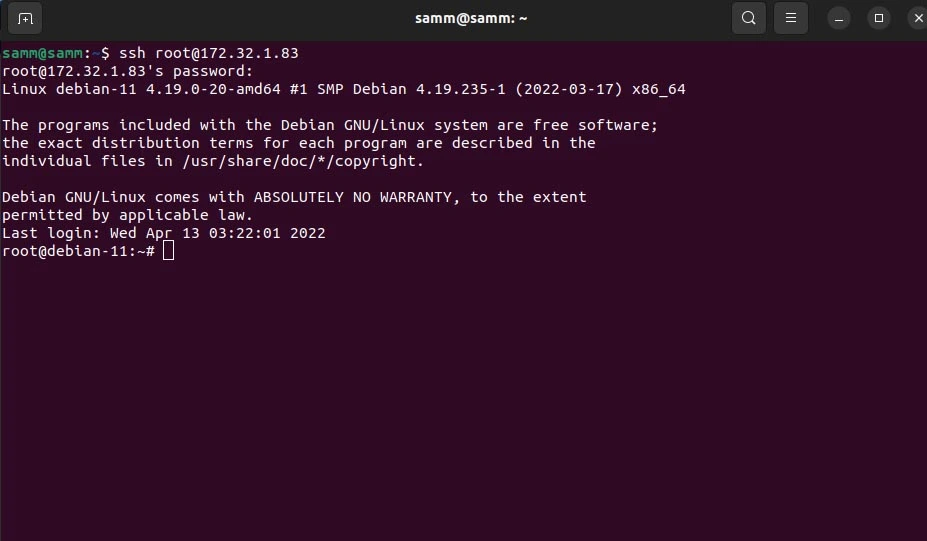
If you are not already connected to your server, log in as the root user now using the following command (substitute with your server’s public/ private IP address):
$ ssh [email protected]
Accept the warning about host authenticity if it appears. If you are using password authentication, provide your root password to log in, and If it’s an SSH key that is passphrase protected, you may be prompted to enter the passphrase the first time you use the key each session. If this is your first time logging into the server with a password, you may also be prompted to change the root password.
[email protected]'s password:
Linux debian-11 4.19.0-20-amd64 #1 SMP Debian 4.19.235-1 (2022-03-17) x86_64

The programs included with the Debian GNU/Linux system are free software;
the exact distribution terms for each program are described in the
individual files in /usr/share/doc/*/copyright.

Debian GNU/Linux comes with ABSOLUTELY NO WARRANTY, to the extent
permitted by applicable law.
Last login: Wed Apr 13 03:22:01 2022
root@debian-11:~#
The root user is the administrative user in a Linux environment, and it has very broad privileges. Because of the heightened privileges of the root account, you are discouraged from using it on a regular basis. This is because part of the power inherent with the root account is the ability to make very destructive changes, even by accident.
As such, the next step is to set up an alternative user account with a reduced scope of influence for day-to-day work. This account will still be able to gain increased privileges when necessary.
Step 3: Creating a New User
Once you are logged in as root, you can create a new user account that you will use to log in from now on.
This example creates a new user called samm, but you should replace it with any username that you prefer:
root@debian-11:~# adduser samm

Adding user `samm' ...
Adding new group `samm' (1001) ...
Adding new user `sammy' (1001) with group `samm' ...
Creating home directory `/home/samm' ...
Copying files from `/etc/skel' ...
New password:
Retype new password:
passwd: password updated successfully
Changing the user information for samm
Enter the new value, or press ENTER for the default
    Full Name []:
    Room Number []:
    Work Phone []:
    Home Phone []:
    Other []:
Is the information correct? [Y/n] Y
Granting Administrative Privileges
Now, you have a new user account with regular account privileges. However, you may sometimes need to perform administrative tasks.
To avoid having to log out of your regular user and log back in as the root account, you can set up what is known as “superuser” or root privileges for your regular account. This will allow your regular user to run commands with administrative privileges by putting the word sudo before each command.
To add these privileges to your new user, you need to add the new user to the wheel group. By default, on Rocky Linux 9, users who belong to the wheel group are allowed to use the sudo command.
As root, run this command to add your new user to the wheel group :
root@debian-11:~# usermod -aG wheel samm
Now, when logged in as your regular user, you can type sudo before commands to perform actions with superuser privileges.
Disconnect from the server and connect again with new user:
ssh [email protected]
Step 4: Secure SSH Access
Securing SSH access is paramount, as SSH is a common entry point for attackers. Modify the SSH configuration file to enhance security:
samm@debian-11:~$ sudo vi /etc/ssh/sshd_config
Consider implementing the following recommendations:
- Change Port: Consider changing the default SSH port to a non-standard port to evade automated attacks.
- Public Key Authentication: Use SSH key pairs for authentication instead of passwords. Disable password authentication to prevent brute-force attacks.
- PermitRootLogin: Set
PermitRootLogintonoto prevent root login via SSH.
After making changes, restart the SSH service:
samm@debian-11:~$ sudo systemctl restart sshd
Connecting With an SSH Key (From your Local Computer)
One of the most secure ways to connect to your server is to use an SSH Key. When you use an SSH Key, you can access the server without a password. In addition, you can completely turn off password access to the server by changing the password-related parameters in the sshd_config file.
When you create an SSH Key, there are two keys: Public and Private. The public key is uploaded to the server you want to connect to and the private key is stored on the computer using which you will establish the connection.
Create an SSH key with the ssh-keygen command on your computer.
If you leave it blank, you will only be able to access it with the SSH key file. However, if you set a password, you can prevent an attacker with the key file from accessing it.
As an example, you can create an SSH key in your local computer with the following command:
$ ssh-keygen -t rsa -b 4096 -C "samm-notebook"
You should then see the output similar to the following:
Generating public/private rsa key pair.
Enter file in which to save the key (/home/samm/.ssh/id_rsa):
Enter passphrase (empty for no passphrase):
Enter same passphrase again:
Your identification has been saved in /home/samm/.ssh/id_rsa
Your public key has been saved in /home/samm/.ssh/id_rsa.pub
The key fingerprint is:
SHA256:h0+7HmUG/uLfDdYsfgLVYTlWv5/f+tRWXOFEN1a0QuA samm-notebook
The key's randomart image is:
+---[RSA 4096]----+
|           ....BO|
|          . . +**|
|          .E .o+=|
|         o .  o.+|
|        S + +. .o|
|         + *.  o=|
|          = ..+.B|
|         . + +.*+|
|         .+.. +==|
+----[SHA256]-----+
Ensure that the ~/.ssh directory have the appropriate permissions set:
$ chmod -R go= ~/.ssh
You now have a public and private key in your computer/notebook that you can use to authenticate. The next step is to place the public key on your server so that you can use SSH-key-based authentication to log in.
Copying the Public Key to Your Rocky Linux Server
The quickest way to copy your public key to the Rocky Linux host is to use a utility called ssh-copy-id. Due to its simplicity, this method is highly recommended if available. If you do not have ssh-copy-id available to you on your client machine, you may use one of the two alternate methods provided in this section (copying via password-based SSH, or manually copying the key).
Copying the Public Key Using ssh-copy-id
The ssh-copy-id tool is included by default in many operating systems, so you may have it available on your local system. For this method to work, you must already have password-based SSH access to your server.
To use the utility, you specify the remote host that you would like to connect to, and the user account that you have password-based SSH access to. This is the account to which your public SSH key will be copied.
The syntax is:
$ ssh-copy-id [email protected]
You should then see the output similar to the following:
/usr/bin/ssh-copy-id: INFO: attempting to log in with the new key(s), to filter out any that are already installed
/usr/bin/ssh-copy-id: INFO: 1 key remain to be installed -- if you are prompted now it is to install the new keys

Number of key(s) added: 1

Now try logging into the machine, with:   "ssh '[email protected]'"
and check to make sure that only the key you wanted were added.
Step 5: Update and Upgrade
After installation, update the system to ensure you’re working with the latest software versions:
samm@debian-11:~$ sudo dnf update
Upgrading the system guarantees that you have the latest security patches and bug fixes, contributing to a more secure environment.
Step 6: Implement a Firewall (UFW)
Debian does not include the UFW firewall by default, so you need to install ufw debian 11 using the apt command:
samm@debian-11:~$ sudo apt install ufw
Configure the firewall to only allow necessary services and ports. For instance, if your server hosts a web application, open HTTP (80) and HTTPS (443) ports and allow essential services such as SSH (port 22) using the following commands:
samm@debian-11:~$ sudo ufw allow ssh
Rules updated
Rules updated (v6)
samm@debian-11:~$ sudo ufw allow http
Rules updated
Rules updated (v6)
samm@debian-11:~$ sudo ufw allow https
Rules updated
Rules updated (v6)
samm@debian-11:~$ sudo ufw reload
Firewall reloaded
Then you can enable it:
samm@debian-11:~$ sudo ufw enable

samm@debian-11:~$ sudo ufw status verbose
Status: active
Logging: on (low)
Default: deny (incoming), allow (outgoing), disabled (routed)
New profiles: skip

To                         Action      From
--                         ------      ----
22/tcp                     ALLOW IN    Anywhere
80/tcp                     ALLOW IN    Anywhere
443                        ALLOW IN    Anywhere
22/tcp (v6)                ALLOW IN    Anywhere (v6)
80/tcp (v6)                ALLOW IN    Anywhere (v6)
443 (v6)                   ALLOW IN    Anywhere (v6)
Step 7: Install Essential Packages
Install necessary packages, including a text editor like Nano or Vim, and tools like wget and curl:
samm@debian-11:~$ sudo apt install nano vim wget curl
Step 8: Install and Configure Fail2Ban
Fail2Ban is an effective tool for countering brute-force attacks by blocking malicious IPs. Install and configure it:
samm@debian-11:~$ sudo apt install fail2ban
samm@debian-11:~$ sudo systemctl enable fail2ban
Create a custom configuration for SSH:
samm@debian-11:~$ sudo cp /etc/fail2ban/jail.conf /etc/fail2ban/jail.local
samm@debian-11:~$ sudo vi /etc/fail2ban/jail.local
Adjust the settings to suit your needs, and ensure that SSH jail is active:
[sshd]
enabled = true
After configuring, restart Fail2Ban:
samm@debian-11:~$ sudo systemctl restart fail2ban
Step 9: Optimize Resource Usage
Efficiency is a key component of a well-configured server. Optimize your resources to ensure smooth performance:
- Swap Space: Set up swap space to prevent memory-related crashes. Use the
fallocatecommand to create a swap file:
samm@debian-11:~$ sudo fallocate -l 1G /swapfile
samm@debian-11:~$ sudo chmod 600 /swapfile
samm@debian-11:~$ sudo mkswap /swapfile
samm@debian-11:~$ sudo swapon /swapfile
- Resource Monitoring: Install monitoring tools like
htopto track resource usage and identify potential bottlenecks.
Step 10: Install a Web Server (Optional)
If you intend to host web applications, consider installing a web server like Apache or Nginx. Configure the server to support secure connections with HTTPS through Let’s Encrypt.
Step 11: Regular Backups
No server setup is complete without a robust backup strategy. Implement regular backups to safeguard your data in case of unforeseen events.
Conclusion
The initial setup of your Debian 11 server serves as the cornerstone of your online endeavors. By prioritizing security and efficiency, you establish a solid foundation for smooth operations and a resilient digital presence. Remember, security is an ongoing process, so stay informed about the latest security practices and keep your system updated.
With a well-configured Debian 11 server, you’re poised to navigate the ever-evolving digital landscape with confidence, knowing that your server is equipped to deliver optimal performance while safeguarding your valuable data.
Also Read Our Other Guides :
- How To Set Up a Firewall with UFW on Debian 11
- How To Install Debian 11 (Bullseye) Server With Pictures
- Initial Setup CentOS 7 Server: Secure and Efficient
- Initial Setup Ubuntu Server 22.04: Secure and Efficient
- Initial Setup Rocky Linux 9 Server: Secure and Efficient
Hopefully, now you have learned how to initial setup with secure and efficient of your Debian 11 Server.