Introduction
In the world of Linux systems, optimizing performance is a crucial aspect of maintaining smooth operations. One effective method to enhance system responsiveness and prevent memory exhaustion is by creating and utilizing swap files. This comprehensive guide will take you through the step-by-step process of how to create and use a swap file on your Linux system, ensuring a seamless user experience.
Table of Contents
Understanding the Role of Swap Space in Linux
Swap space, often referred to as virtual memory, is a reserved area on your storage device that acts as an extension of your system’s physical memory (RAM). When your system’s RAM reaches full capacity, the Linux kernel transfers infrequently accessed data from RAM to the swap space. This action liberates RAM space for ongoing processes. This prevents memory exhaustion and ensures your system’s stability.
Create a Swap File
Certainly, here’s a revised sentence with transition words and active voice:
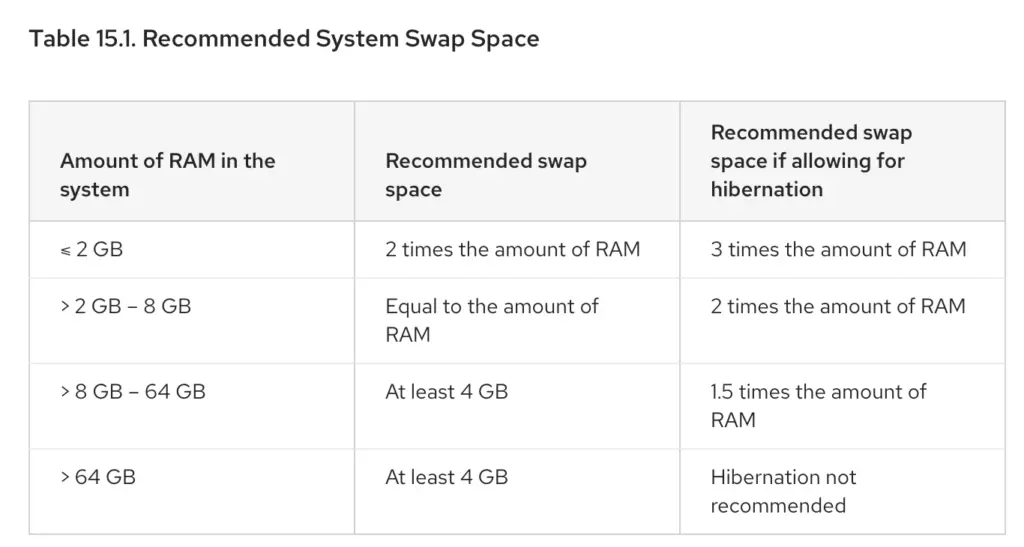
If your system doesn’t have swap space or you believe the existing swap space is insufficient, you have the option to create a swap file on Linux. Additionally, it’s possible to create multiple swap files to meet your requirements.
Follow these steps to create a swap file on your Linux system:
Step 1: Check swap space in Linux
Before you go and start adding swap space, it would be a good idea to check whether you have swap space already available in your system.
[samm@rockylinux9 ~]$ free -h
               total        used        free      shared  buff/cache   available
Mem:           3.6Gi       1.3Gi       218Mi        21Mi       2.4Gi       2.2Gi
Swap:          4.0Gi        49Mi       3.9Gi
The free command gives you the size of the swap space but it doesn’t tell you if it’s a real swap partition or a swap file. The swapon command is better in this regard.
[samm@rockylinux9 ~]$ swapon --show
NAME      TYPE      SIZE USED PRIO
/dev/dm-1 partition   4G  50M   -2
As you can see, I have 4GB of swap space and it’s on a separate partition. If it was a swap file, the type would have been file instead of partition.
[samm@rockylinux9 ~]$ swapon --show
NAME      TYPE      SIZE USED PRIO
/swapfile file   	  4G  50M   -2
If you don’ have a swap space on your system, it should show something like this:
samm@linux:~$ free -h
               total        used        free      shared  buff/cache   available
Mem:           1.9Gi       331Mi       1.4Gi        13Mi       207Mi       1.5Gi
Swap:             0B          0B          0B
Step 2: Make a new swap file
First thing first, create a file with the size of swap space you want. Let’s say that I want to add 2 GB of swap space to my system. Use the fallocate command to create a file of size 2 GB.
root@linux:~# fallocate -l 2G /swapfile
We recommend allowing only the root user to read from and write to the swap file. You’ll even see warning like “insecure permissions 0644, 0600 suggested” when you try to use this file for swap area.
root@linux:~# chmod 600 /swapfile
Step 3: Mark the new file as swap space
We recommend permitting only the root user to read from and write to the swap file. You can do that with mkswap tool.
root@linux:~# mkswap /swapfile
You should see an output like this:
Setting up swapspace version 1, size = 2 GiB (2147479552 bytes)
no label, UUID=484ef8e5-caab-44c8-b43e-e8711d0ad90d
Step 4: Enable the swap file
Now your system knows that the file swapfile can be used as swap space. But it is not done yet. You need to enable the swap file so that your system can start using this file as swap.
root@linux:~# swapon /swapfile
Now if you check the swap space, you should see that your Linux system recognizes and uses it as the swap area:
Filename				Type		Size	Used	Priority
/swapfile               file    	2097148	0	    -2

or

root@antvklik-api:~# swapon --show
NAME      TYPE SIZE USED PRIO
/swapfile file   2G   0B   -2
Step 5: Make the changes permanent
Whatever you have done so far is temporary. Reboot your system and all the changes will disappear.
You can make the changes permanent by adding the newly created swap file to /etc/fstab file.
It’s always a good idea to make a backup before you make any changes to the /etc/fstab file.
root@linux:~# cp /etc/fstab /etc/fstab.backup
Now you can add the following line to the end of /etc/fstab file:
root@linux:~# vi /etc/fstab

#SWAPFILE
/swapfile      none    swap    sw     0 0
Now you have everything in place. Your swap file will be used even after you reboot your Linux system.
Step 6: Adjust swappiness
The swappiness parameter determines the frequency of swap space usage, with a value ranging from 0 to 100. A higher value indicates increased utilization of the swap space.
The default swappiness in Ubuntu desktop is 60 while in server it is 1. You can check the swappiness with the following command:
root@linux:~# cat /proc/sys/vm/swappiness
0
Why servers should use a low swappiness? Because swap is slower than RAM and for a better performance, the RAM should be utilized as much as possible. On servers, the performance factor is crucial and hence the swappinness is as low as possible.
You can change the swappiness on the fly using the following systemd command:
root@linux:~# sysctl vm.swappiness=10
vm.swappiness = 10
This change it only temporary though. If you want to make it permanent, you can edit the /etc/sysctl.conf file and add the swappiness value in the end of the file:
root@linux:~# vi /etc/sysctl.conf
Paste the following lines in the file.
vm.swappiness=10
vm.vfs_cache_pressure=50
Save and exit.
root@linux:~# sysctl -p
Removing swap file in Linux (Optional)
If you would like to remove a swap file, use below procedure.
First, make sure that you have enough free RAM. Now swap off the file:
root@linux:~# swapoff /swapfile
The next step is to remove the respective entry from the /etc/fstab file.
And in the end, you can remove the file to free up the space:
root@linux:~# rm -rf /swapfile
Conclusion
In the realm of Linux systems, optimizing performance is a continuous pursuit. By understanding and utilizing swap files, you can significantly enhance your system’s responsiveness and stability. This comprehensive guide has equipped you with the knowledge to create, configure, enable, and monitor swap files on your Linux system. As you implement these strategies, you’ll find your Linux experience elevated as your system handles tasks more efficiently and effectively.
Also Read Our Other Guides :
- How To Create Multiboot USB with Ventoy in Linux
- How To Use Rsync to Sync Local and Remote Directories in Linux
- How To Get Total Inodes and Increase Disk Inode Number in Linux
- How To Install and Use Linux Screen with Commands
- How To Get Total Inodes and Increase Disk Inode Number in Linux
- How To Install and Configure Ansible on Rocky Linux 9
Finally, now you have learned how to create and use swap file on Linux.