Basically in the vast world of Linux, managing your hard disk drives is an essential task. Whether you’re a seasoned sysadmin or a Linux newbie, obtaining detailed information about your hard disk drives is crucial for effective system maintenance and troubleshooting. In this article, we’ll explore different ways how to find Hard Disk Drive Information in Linux, providing you with an array of techniques suitable for various skill levels.
Table of Contents
- Understanding the Basics
- Find Hard Disk Drive Information in Linux
- Method 1: Using ‘lsblk’ Command
- Method 2: ‘fdisk’ – A Classic Choice
- Method 3: Get Specifics with ‘smartctl’
- Method 4: Use ‘df’ for Disk Space Usage
- Method 5: Explore ‘/proc’ for Kernel Information
- Method 6: Utilize GUI Utilities
- Method 7: ‘lshw’ – Gathering Hardware Details
- Method 8: Discover Storage Device Details with ‘lsscsi’
- Method 9: Explore ‘lsusb’ for USB-Connected Drives
- Conclusion
Understanding the Basics
Firstly, let’s clarify what hard disk drive information entails. In the context of Linux, certainly this refers to data like storage capacity, disk health, file system type, and much more. Knowing how to access this information is essential for proper disk management.
Find Hard Disk Drive Information in Linux
To begin, let’s dive into some basic Linux commands.
Method 1: Using ‘lsblk’ Command
For Linux enthusiasts just starting out, the ‘lsblk’ command is an excellent choice. It’s simple and efficient. Open your terminal and enter using following command :
$ lsblk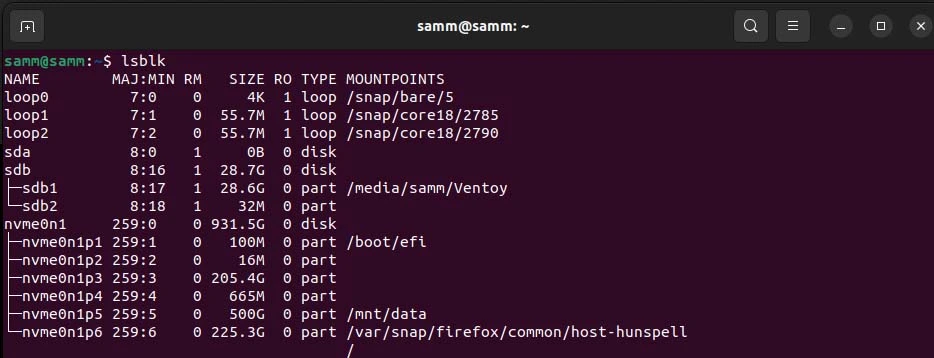
This command will display a structured overview of your hard disk drives, including their names, sizes, and partitions. It’s a great way to get a quick snapshot of your storage devices.
Method 2: ‘fdisk’ – A Classic Choice
If you’ve been around Linux for a while, you’re likely familiar with ‘fdisk.’ It’s a classic tool for managing partitions, but it can also be used to gather information about your hard drives.
To retrieve detailed information, open the terminal and run following command :
$ sudo fdisk -l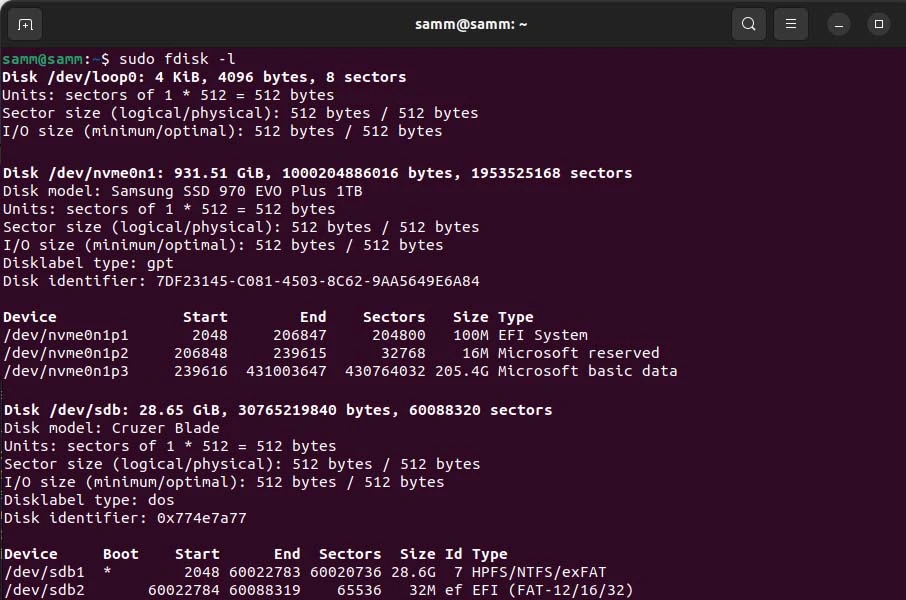
This command will list all your hard drives and their partitions along with specific details such as sizes, types, and file systems.
Method 3: Get Specifics with ‘smartctl’
For those who want to delve even deeper into hard disk drive diagnostics, ‘smartctl’ is the tool of choice. This utility provides you with detailed information about the health and performance of your hard drives. Run the following command in your terminal:
$ sudo smartctl --all /dev/sdb1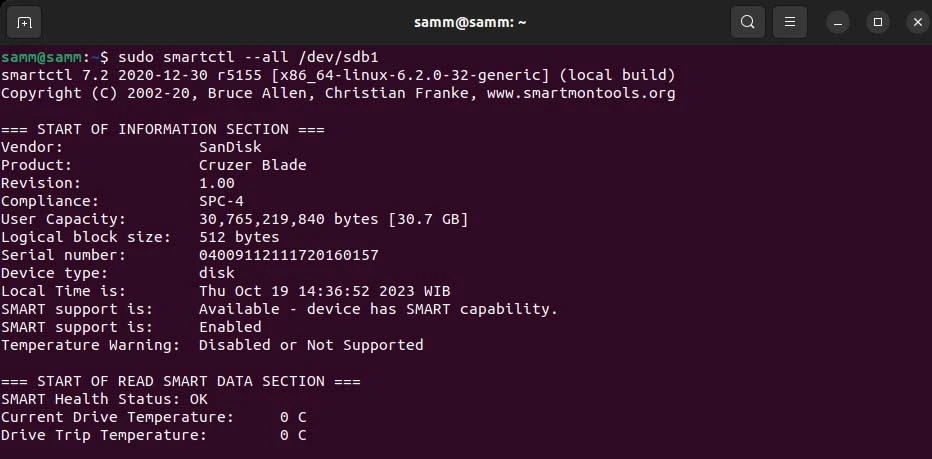
Replace ‘/dev/sdX’ with the path to your specific drive. ‘smartctl’ offers a comprehensive report on attributes, health status, and error logs.
Method 4: Use ‘df’ for Disk Space Usage
If your primary concern is the available space on your hard drives, the ‘df’ command can help. It provides information about disk space utilization. Execute following command :
$ df -hT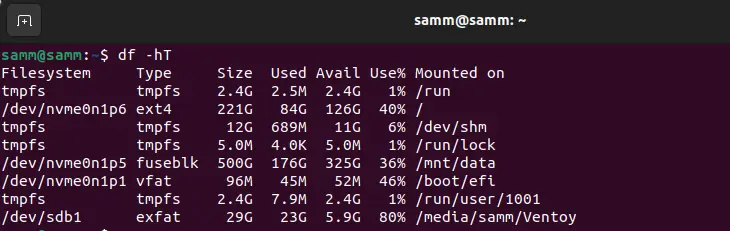
This will display a list of all mounted file systems, their sizes, usage, and available space. It’s particularly useful for understanding which partitions are running low on storage.
Method 5: Explore ‘/proc’ for Kernel Information
Another method to gather information about your hard drives is to explore the ‘/proc’ directory, which contains kernel and system information. Specifically, you can check the ‘/proc/diskstats’ file for comprehensive statistics on all block devices. To access this data, use the following command:
$ cat /proc/diskstats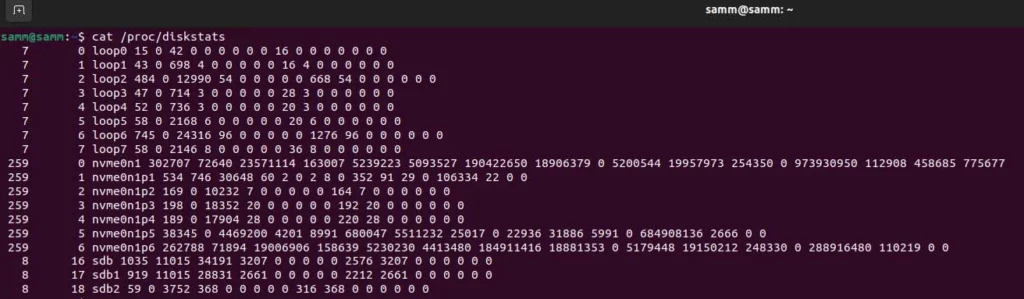
This approach is more technical and might be preferred by advanced Linux users who want to extract data directly from the kernel.
Method 6: Utilize GUI Utilities
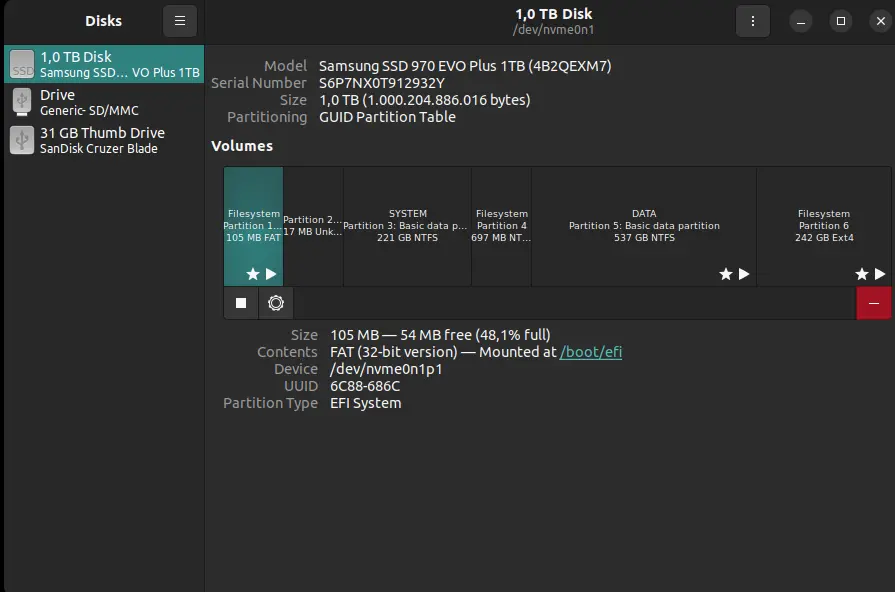
For those who prefer a graphical user interface (GUI) over the command line, various Linux desktop environments offer tools for viewing disk information. GNOME Disks, KDE Partition Manager, and GParted are popular choices. Simply install them from your package manager, and you’ll have a user-friendly interface to inspect your hard drives, like following screenshot :
Method 7: ‘lshw’ – Gathering Hardware Details
If you need comprehensive hardware information, including details about your hard drives, ‘lshw’ (List Hardware) is a powerful command. Install it if it’s not already available on your system and run following command :
$ sudo lshw -class disk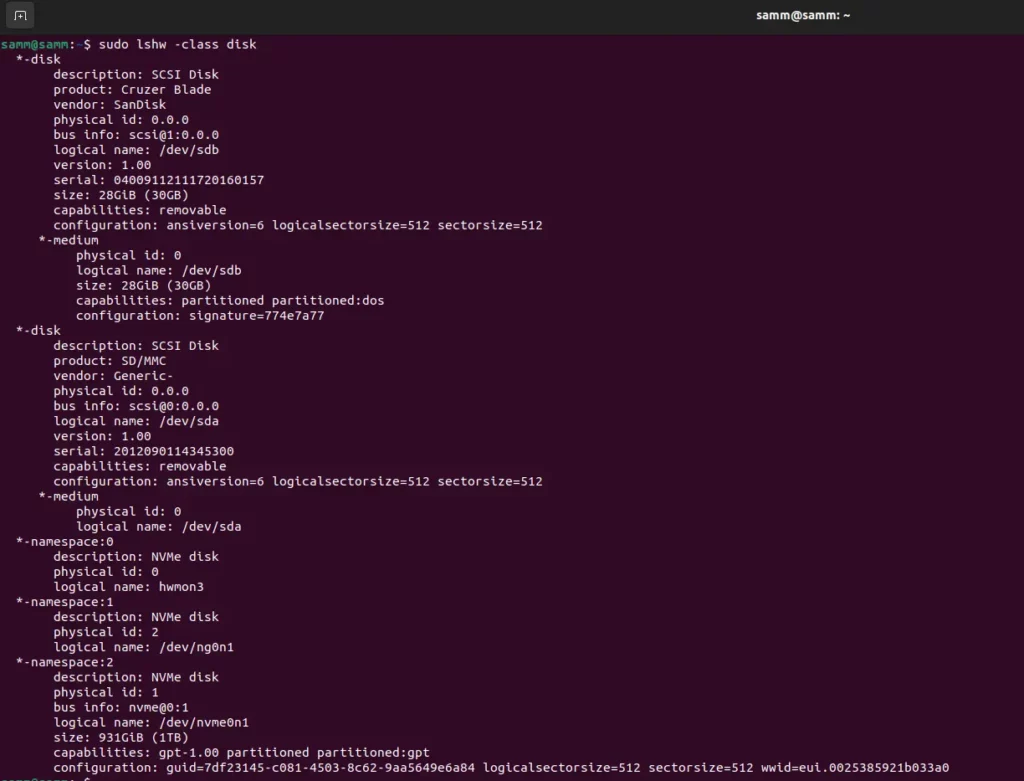
This command will provide a detailed inventory of all hardware components on your system, including your hard disk drives.
Method 8: Discover Storage Device Details with ‘lsscsi’
For systems equipped with SCSI devices, ‘lsscsi’ is an invaluable command to fetch detailed information about your storage devices. Execute the following:
$ lsscsi
It will list all your SCSI devices along with various details such as vendor, model, and size.
Method 9: Explore ‘lsusb’ for USB-Connected Drives
If you have external hard drives or other storage devices connected via USB, ‘lsusb’ can help you identify and gather information about them. Run following command :
$ lsusb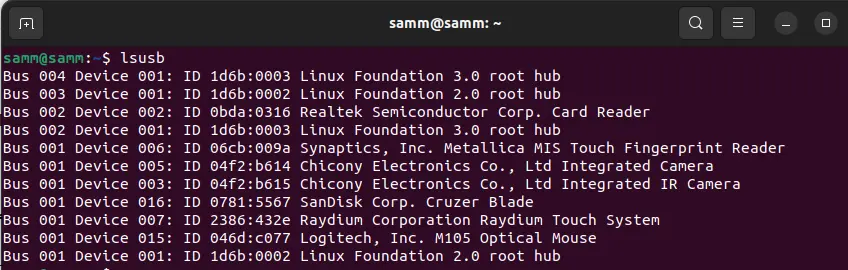
This command will provide a list of USB devices, including any attached external hard drives.
Conclusion
At this point finding Hard Disk Drive information in Linux is a straightforward task, thanks to an array of command-line tools and graphical utilities at your disposal. Whether you’re looking for a quick overview or in-depth diagnostics, you can choose the method that suits your needs and expertise level. First thing to remember don’t forget to regularly check your hard drives’ health and performance to ensure the reliability and stability of your Linux system.
Now you have a variety of techniques at your fingertips to retrieve Hard Disk Drive information on your Linux system. Experiment with these methods to find the one that best fits your needs. Whether you prefer command-line utilities like ‘lsblk,’ ‘fdisk,’ and ‘smartctl,’ or opt for GUI tools like GNOME Disks or KDE Partition Manager, Linux offers multiple options to help you gain insights into your hard disk drives. So, start exploring and managing your storage devices effectively today.
Also Read Our Other Guides :
- How To Create Multiboot USB with Ventoy in Linux
- How To Use Rsync to Sync Local and Remote Directories in Linux
- How To Get Total Inodes and Increase Disk Inode Number in Linux
- How To Create and Use Swap File on Linux System
- How To Use Git Version Control on Linux: For Beginner
- The 40 Most-Used Linux Commands You Should Know
- 6 Methods To Search For Files By Name In Linux
- The Easy Ways to Check File Size in Linux
Finally, now you have learned how to find Hard Disk Drive Information in Linux.