In the ever-evolving world of cybersecurity, safeguarding your Linux server is of paramount importance. One crucial aspect of securing your server is configuring SSH key-based authentication. In this step-by-step guide, we will walk you through the process of setting up/ Configure Secure SSH key-based authentication in Linux, ensuring a higher level of security while making the login process more straightforward.
Table of Contents
What Is SSH Key-Based Authentication?
SSH, which stands for Secure Shell, is a widely used protocol for securely connecting to remote servers and managing them. SSH key-based authentication is a method of proving your identity to the server without using a password. Instead, it relies on cryptographic keys, making it a much more secure and convenient way to access your server.
Why Use SSH Key-Based Authentication?
Using SSH key-based authentication offers several benefits:
- Enhanced Security: Passwords can be guessed or cracked, but SSH keys provide a higher level of security as they are nearly impossible to brute force.
- No More Passwords: You can log in without entering your password each time, saving you time and effort.
- Automation: SSH keys are a preferred method for automated processes and scripts, allowing secure, passwordless interactions with the server.
Now, let’s get started with the configuration process.
Configure SSH Key-based Authentication In Linux
In this guide, we will walk through the process of configuring SSH key-based authentication in Linux using Ubuntu Linux and Rockylinux systems as an example.
- The local system, running Ubuntu 22.04 Desktop, has the IP address 172.32.1.224/24
- While the remote system, acting as an SSH server, runs Rockylinux 9.2 Server with the IP address 172.32.1.223/24.
Step 1: Generate an SSH Key Pair
The first step is to generate an SSH key pair. To do this, open your terminal and enter the following command:
$ ssh-keygen -t rsa -b 4096 -C "samm@ubuntu"
This command will generate a pair of keys: a private key (usually stored on your local machine) and a public key (to be placed on the server).
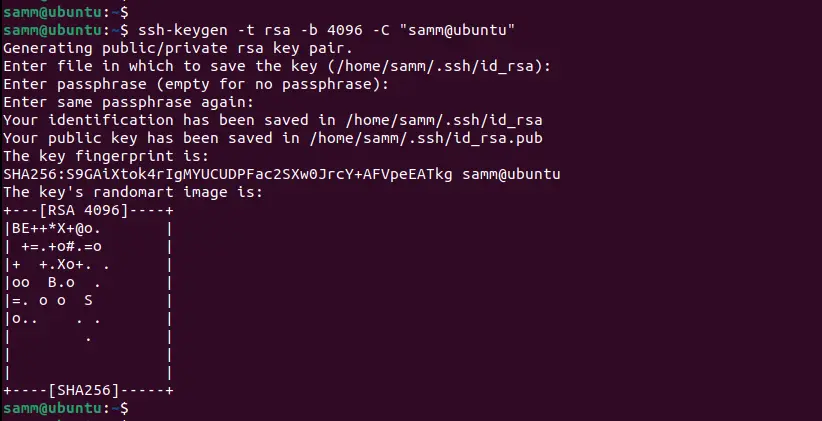
To update your SSH key with a passphrase, follow these steps if you already have an SSH key without a passphrase in the private file ~/.ssh/id_rsa Open your terminal and use the following command:
$ ssh-keygen -p -f ~/.ssh/id_rsa
Step 2: Copy the Public Key to the Server
Now that you have your SSH key pair, you need to copy the public key to your server. Use the following command to do so, replacing [username] and [server_ip] with your server’s username and IP address:
ssh-copy-id [username]@[server_ip]
You’ll be prompted to enter your server password. Once you’ve done this, your public key will be added to the ~/.ssh/authorized_keys file on the server.
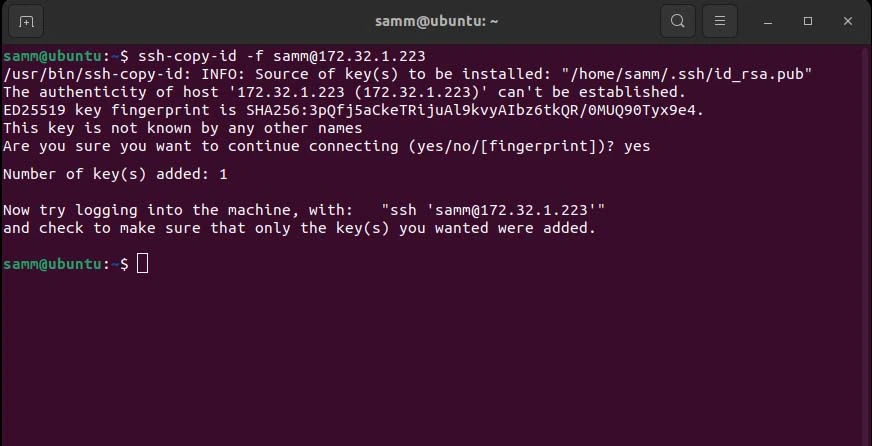
If you have previously copied the key but wish to update it with a new passphrase, utilize the -f option to overwrite the existing key, as demonstrated below:
$ ssh-copy-id -f [email protected]
Step 3: Disable Password Authentication
To ensure that only SSH key-based authentication is allowed, you should disable password authentication. Open your SSH configuration file using a text editor like nano or vim:
sudo nano /etc/ssh/sshd_config
Look for the line that says PasswordAuthentication and change its value to no:
PasswordAuthentication no
Save and exit the file. Then, restart the SSH service to apply the changes:
sudo systemctl restart sshd
Step 4: Test Your SSH Key-Based Authentication
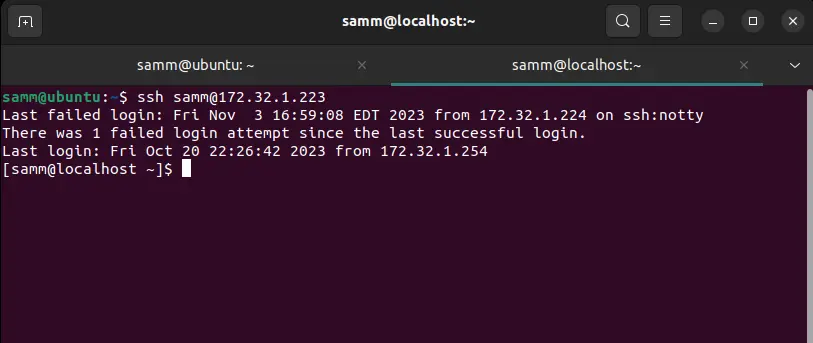
Before you log out of your current SSH session, it’s essential to test the new configuration to ensure it works correctly. Open a new terminal window and try to SSH into your server:
ssh [username]@[server_ip]
If everything is configured correctly, you should be logged in without entering a password.
Additional Security Tips
While SSH key-based authentication significantly enhances the security of your Linux server, here are some additional tips to consider:
- Use Strong Passphrases: If you choose to add a passphrase when generating your SSH key pair, make sure it’s strong and unique.
- Regularly Update Your Keys: Rotate your SSH keys periodically to maintain security.
- Limit SSH Access: Restrict SSH access to only trusted IP addresses or networks using the
sshd_configfile. - Monitor Your Server: Keep an eye on server logs for any unusual activities.
Conclusion
In conclusion, configuring SSH key-based authentication in Linux is an essential step in securing your server and ensuring seamless, authorized access. By following this step-by-step guide, you can enhance your server’s security posture while simplifying access management.
By understanding the fundamentals of SSH key-based authentication, generating your key pair, and following best practices, you’ll fortify your Linux server against unauthorized access attempts effectively.
Remember, digital security is an ongoing process. Stay vigilant, keep your systems up to date, and always be proactive in adopting the latest security measures to protect your valuable data and assets.
Also Read Our Other Guides :
- Initial Setup Debian 11 Server: Secure and Efficient
- Initial Setup CentOS 7 Server: Secure and Efficient
- Initial Setup Rocky Linux 9 Server: Secure and Efficient
- How To Set Up a Firewall with UFW on Ubuntu 22.04
- How To Set Up a Firewall with UFW on Debian 11
- How To Manage Log Files Using Logrotate In Linux
Finally, now you have learned how to configure ans secure SSH Key-based Authentication In Linux