
Introduction
Redis, a powerful and open-source in-memory data store, is renowned for its lightning-fast performance and versatility. Whether you’re developing applications, managing caches, or implementing messaging systems, Redis has you covered. This guide will walk you through the process of How to Install Redis on Debian 11 Server, equipping you with the tools to harness its capabilities for your projects.
Table of Contents
- Introduction
- Prerequisites for Redis Installation
- Install Redis on Debian
- How to uninstall Redis on Debian 11
- Conclusion
Prerequisites for Redis Installation
Before embarking on the installation, make sure your system satisfies the following prerequisites:
- Debian 11 : Make sure you have a clean installation of Debian 11 Server. To set this up, follow our guide Initial Setup Debian 11 Server: Secure and Efficient. You can deploy this on a physical machine or a virtual environment like VMware or VirtualBox.
- A stable internet connection for package downloads
- Familiarity with basic Linux terminal commands
Install Redis on Debian
Follow the next steps to install Redis on your Debian 11 Servers
Step 1: System Update
Begin the installation process by ensuring that your system’s package repositories and installed packages are up to date. Execute the following command to update:
samm@redis:~$ sudo apt-get update -y
samm@redis:~$ sudo apt-get upgrade -y
Step 2: Install Required Packages
samm@redis:~$ sudo apt-get install wget curl gnupg -y
Step 3: Add Redis APT Repository
In this approach, we will seamlessly integrate the PPA repository of Redis by executing the following command:
samm@redis:~$ curl https://packages.redis.io/gpg | sudo apt-key add -

samm@redis:~$ echo "deb https://packages.redis.io/deb $(lsb_release -cs) main" | sudo tee /etc/apt/sources.list.d/redis.list
Step 4: Install Redis on Debian 11
After adding the required respiratory, Use the following command to install Redis:
samm@redis:~$ sudo apt-get update
samm@redis:~$ sudo apt-get install redis-server
Step 5: Start and Enable Redis
Following the installation and security configuration, verify the proper functioning of Redis. Initiate the Redis service to ensure its operational status:
samm@redis:~$ sudo systemctl start redis-server.service

samm@redis:~$ sudo systemctl enable --now redis-server.service
Synchronizing state of redis-server.service with SysV service script with /lib/systemd/systemd-sysv-install.
Executing: /lib/systemd/systemd-sysv-install enable redis-server
Created symlink /etc/systemd/system/redis.service → /lib/systemd/system/redis-server.service.
Created symlink /etc/systemd/system/multi-user.target.wants/redis-server.service → /lib/systemd/system/redis-server.service.
Confirm that Redis is running
samm@redis:~$ sudo systemctl status redis-server
● redis-server.service - Redis Server 7.0.9
     Loaded: loaded (/lib/systemd/system/redis-server.service; enabled; vendor preset: enabled)
     Active: active (running) since Wed 2022-12-14 22:12:46 WIB; 4s ago
       Docs: http://redis.io/documentation,
             man:redis-server(1)
   Main PID: 3542 (redis-server)
     Status: "Ready to accept connections"
      Tasks: 5 (limit: 4674)
     Memory: 7.5M
        CPU: 24ms
     CGroup: /system.slice/redis-server.service
             └─3542 /usr/bin/redis-server 127.0.0.1:6379

Dec 14 22:12:46 redis systemd[1]: Starting Redis Server 7.0.9...
Dec 14 22:12:46 redis systemd[1]: Started Redis Server 7.0.9.
To confirm the installation, we will check the version of Redis using the command:
samm@redis:~$ redis-server -v
Redis server v=7.0.9 sha=00000000:0 malloc=jemalloc-5.2.1 bits=64 build=3af367a78d5e21e9
Step 6: Secure Redis
While Redis offers remarkable performance, its default configuration can potentially expose your system to security risks. To enhance security, modify the Redis configuration file:
samm@redis:~$ sudo vi /etc/redis/redis.conf
Find the line containing bind 127.0.0.1 and change it to bind 127.0.0.1 ::1. This modification restricts Redis to only listen on the local interface.
################################## NETWORK #####################################

# By default, if no "bind" configuration directive is specified, Redis listens
# for connections from all available network interfaces on the host machine.
# bind 192.168.1.100 10.0.0.1     # listens on two specific IPv4 addresses
# bind 127.0.0.1 ::1              # listens on loopback IPv4 and IPv6
# bind * -::*                     # like the default, all available interfaces
# IF YOU ARE SURE YOU WANT YOUR INSTANCE TO LISTEN TO ALL THE INTERFACES
# COMMENT OUT THE FOLLOWING LINE.
#
# You will also need to set a password unless you explicitly disable protected
# mode.
# ~~~~~~~~~~~~~~~~~~~~~~~~~~~~~~~~~~~~~~~~~~~~~~~~~~~~~~~~~~~~~~~~~~~~~~~~
bind 127.0.0.1 ::1

# By default, outgoing connections (from replica to master, from Sentinel to
# instances, cluster bus, etc.) are not bound to a specific local address. In
# most cases, this means the operating system will handle that based on routing
# and the interface through which the connection goes out.
Save the file and exit the editor.
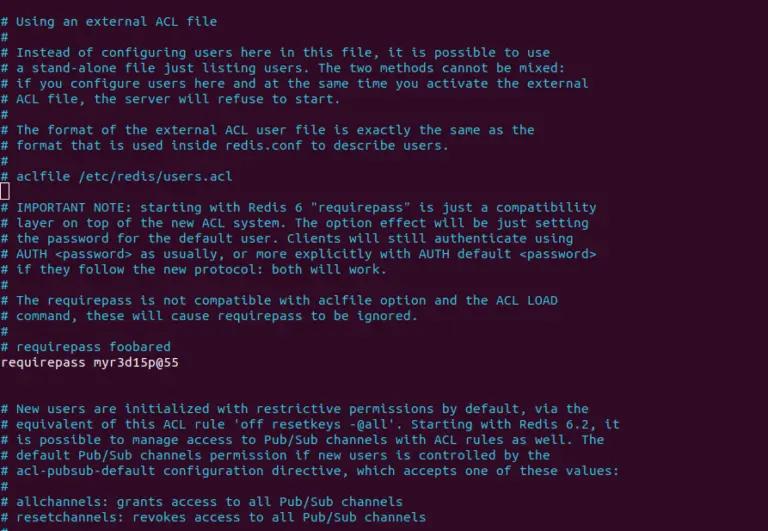
To enforce authentication, locate the requirepass directive and set a strong password. In the same file “/etc/redis/redis.conf”, look for the “requirepass” line and write your password in front of it:
samm@redis:~$ sudo vi /etc/redis/redis.conf
.....
# AUTH <password> as usually, or more explicitly with AUTH default <password>
# if they follow the new protocol: both will work.
#
# The requirepass is not compatible with aclfile option and the ACL LOAD
# command, these will cause requirepass to be ignored.
requirepass myr3d15p@55
.....
Restart the “Redis” server to apply the changes:
samm@redis:~$ sudo systemctl restart redis-server
Step 7: Check the Log of Redis
samm@redis:~$ sudo tail -f /var/log/redis/redis-server.log

4412:M 08 Dec 2022 23:44:30.621 * monotonic clock: POSIX clock_gettime
4412:M 08 Dec 2022 23:44:30.621 * Running mode=standalone, port=6379.
4412:M 08 Dec 2022 23:44:30.621 # Server initialized
4412:M 08 Dec 2022 23:44:30.621 # WARNING overcommit_memory is set to 0! Background save may fail under low memory condition. To fix this issue add 'vm.overcommit_memory = 1' to /etc/sysctl.conf and then reboot or run the command 'sysctl vm.overcommit_memory=1' for this to take effect.
4412:M 08 Dec 2022 23:44:30.621 * Loading RDB produced by version 7.0.5
4412:M 08 Dec 2022 23:44:30.621 * RDB age 0 seconds
4412:M 08 Dec 2022 23:44:30.621 * RDB memory usage when created 0.82 Mb
4412:M 08 Dec 2022 23:44:30.621 * Done loading RDB, keys loaded: 0, keys expired: 0.
4412:M 08 Dec 2022 23:44:30.621 * DB loaded from disk: 0.000 seconds
4412:M 08 Dec 2022 23:44:30.621 * Ready to accept connectionssamm@redis:~$ sudo tail -f /var/log/redis/redis-server.log

4412:M 08 Dec 2022 23:44:30.621 * monotonic clock: POSIX clock_gettime
4412:M 08 Dec 2022 23:44:30.621 * Running mode=standalone, port=6379.
4412:M 08 Dec 2022 23:44:30.621 # Server initialized
4412:M 08 Dec 2022 23:44:30.621 # WARNING overcommit_memory is set to 0! Background save may fail under low memory condition. To fix this issue add 'vm.overcommit_memory = 1' to /etc/sysctl.conf and then reboot or run the command 'sysctl vm.overcommit_memory=1' for this to take effect.
4412:M 08 Dec 2022 23:44:30.621 * Loading RDB produced by version 7.0.5
4412:M 08 Dec 2022 23:44:30.621 * RDB age 0 seconds
4412:M 08 Dec 2022 23:44:30.621 * RDB memory usage when created 0.82 Mb
4412:M 08 Dec 2022 23:44:30.621 * Done loading RDB, keys loaded: 0, keys expired: 0.
4412:M 08 Dec 2022 23:44:30.621 * DB loaded from disk: 0.000 seconds
4412:M 08 Dec 2022 23:44:30.621 * Ready to accept connections
Step 8: Config Redis and Fix the Warning
samm@redis:~$ sudo cp -rf /etc/redis/redis.conf /etc/redis/redis.conf.ori
samm@redis:~$ sudo vi /etc/redis/redis.conf
bind 127.0.0.1 172.32.1.90
maxmemory 1000000000
appendonly yes
appendfilename "appendonly.aof"
protected-mode no
samm@redis:~$ sudo vi /etc/sysctl.conf
#Add this config in last line
net.core.somaxconn=65535
fs.file-max=1024000
vm.swappiness=0
vm.overcommit_memory=1
samm@redis:~$ sudo vi /etc/security/limits.conf
#Add this config in last line
redis           soft    nofile          65535
redis           hard    nofile          65535

samm@redis:~$ sudo sysctl -a
Fixing Transparent Hugepage redis-server
root@redis:~# echo never > /sys/kernel/mm/transparent_hugepage/enabled
root@redis:~# systemctl restart redis-server.service

root@redis:~# vi /etc/rc.local
#!/bin/bash
echo never > /sys/kernel/mm/transparent_hugepage/enabled
systemctl restart redis-server.service
exit 0

root@redis:~# chown root:root /etc/rc.local
root@redis:~# chmod 770 /etc/rc.local
root@redis:~# tail /var/log/redis/redis-server.log

root@redis:~# reboot
And check the log again, and see if any warning again.
samm@redis:~$ sudo tail /var/log/redis/redis-server.log
663:M 08 Dec 2022 23:56:58.841 * Reading RDB base file on AOF loading...
663:M 08 Dec 2022 23:56:58.841 * Loading RDB produced by version 7.0.5
663:M 08 Dec 2022 23:56:58.841 * RDB age 155 seconds
663:M 08 Dec 2022 23:56:58.841 * RDB memory usage when created 0.82 Mb
663:M 08 Dec 2022 23:56:58.841 * RDB is base AOF
663:M 08 Dec 2022 23:56:58.841 * Done loading RDB, keys loaded: 0, keys expired: 0.
663:M 08 Dec 2022 23:56:58.841 * DB loaded from base file appendonly.aof.1.base.rdb: 0.000 seconds
663:M 08 Dec 2022 23:56:58.841 * DB loaded from append only file: 0.001 seconds
663:M 08 Dec 2022 23:56:58.841 * Opening AOF incr file appendonly.aof.1.incr.aof on server start
663:M 08 Dec 2022 23:56:58.841 * Ready to accept connections
Test Benchmark Redis
samm@redis:~$ redis-benchmark -h 127.0.0.1 -p 6379 -n 10000 -c 1000

====== PING_INLINE ======
  10000 requests completed in 0.22 seconds
  1000 parallel clients
  3 bytes payload
  keep alive: 1
  host configuration "save": 3600 1 300 100 60 10000
  host configuration "appendonly": yes
  multi-thread: no

Latency by percentile distribution:
0.000% <= 10.223 milliseconds (cumulative count 1)
50.000% <= 19.839 milliseconds (cumulative count 5007)
75.000% <= 20.879 milliseconds (cumulative count 7507)
99.951% <= 28.527 milliseconds (cumulative count 9996)
99.976% <= 28.559 milliseconds (cumulative count 9999)
99.994% <= 28.575 milliseconds (cumulative count 10000)
100.000% <= 28.575 milliseconds (cumulative count 10000)

Cumulative distribution of latencies:
0.000% <= 0.103 milliseconds (cumulative count 0)
0.870% <= 11.103 milliseconds (cumulative count 87)
1.400% <= 12.103 milliseconds (cumulative count 140)
1.830% <= 13.103 milliseconds (cumulative count 183)
2.280% <= 14.103 milliseconds (cumulative count 228)
99.100% <= 27.103 milliseconds (cumulative count 9910)
99.730% <= 28.111 milliseconds (cumulative count 9973)
100.000% <= 29.103 milliseconds (cumulative count 10000)

Summary:
  throughput summary: 45248.87 requests per second
  latency summary (msec):
          avg       min       p50       p95       p99       max
       19.645    10.216    19.839    23.487    26.959    28.575
====== PING_MBULK ======
  10000 requests completed in 0.22 seconds
  1000 parallel clients
  3 bytes payload
  keep alive: 1
  host configuration "save": 3600 1 300 100 60 10000
  host configuration "appendonly": yes
  multi-thread: no
Step 9: Config Firewall for Redis
Redis typically uses port 6379 for communication. To allow traffic on this port, run:
samm@redis:~$ sudo ufw allow 6379
Rule added
Rule added (v6)
Once you’ve configured your desired rules, enable UFW to start enforcing them:
samm@redis:~$ sudo ufw reload
Once the firewall has
Step 10: Access Redis
Open a terminal on your redis server and you client machine to access Redis using the redis-cli tool. You can enter the following command to start the Redis command-line interface:
- From Local Server
samm@redis:~$ redis-cli -h 127.0.0.1 -p 6379 ping
PONG

samm@redis:~$ redis-cli -h 127.0.0.1 -p 6379
127.0.0.1:6379> exit
- From Remote Server
$ redis-cli -h 172.32.1.90 -p 6379 ping
PONG

$ redis-cli -h 172.32.1.90 -p 6379
172.32.1.90:6379> exit
How to uninstall Redis on Debian 11
For uninstalling Redis from Debian 11, leverage the apt package manager along with its autoremove option:
samm@redis:~$ sudo apt remove --autoremove redis-server -y
Conclusion
In conclusion, install Redis on Debian 11 empowers you with a high-performance, in-memory data store that has the potential to revolutionize your applications and systems. Following the comprehensive steps outlined in this guide, you’ve successfully installed Redis, secured it, and begun exploring its fundamental features.
Also Read Our Other Guides :
- How To Install Redis on Ubuntu Server 22.04
- How To Install MySQL 8.0 on Debian 11
- How To Install MySQL 8.0 on Ubuntu Server 22.04
- How To Install Apache Solr 9.1 on Debian 11
- How To Install and Setup Node.js on Debian 11
Finally, now you have learned how to install Redis on Debian 11.