Introduction
Efficiently managing multiple tasks within a Linux terminal is essential for productivity. Linux Screen, a versatile command-line utility, empowers users to create and manage multiple virtual terminal sessions within a single window. In this comprehensive guide, we’ll walk you through the step-by-step process of how to install and use Linux Screen, assists in improving your multitasking capabilities and streamlines your overall command-line experience..
Table of Contents
Need for Terminal Multiplexing
As Linux users, the terminal is our primary interface to interact with the system. Often, tasks require running multiple commands or processes simultaneously. Terminal multiplexing addresses this need by allowing us to divide a single terminal window into several virtual ones, each with its own running processes.
Introducing Linux Screen
Linux Screen, a powerful terminal multiplexer, enables users to create, manage, and switch between multiple terminal sessions with ease. Whether you’re a developer, system administrator, or enthusiast, Screen enhances your multitasking capabilities and facilitates efficient workflow management. The screen in Linux is a software package which allows you to open multiple terminal sessions inside your single SSH window. The processes that are running in the screen will continue to run even if you got disconnected from SSH.
Prerequisites
Before we dive into the how to install and use Linux Screen, there is prerequisite you need to ensure are in place. To set up these servers, follow our guides :
- Initial Setup Debian 11 Server: Secure and Efficient
- Initial Setup Ubuntu Server 22.04: Secure and Efficient
- Initial Setup Rocky Linux 9 Server: Secure and Efficient
- Initial Setup CentOS 7 Server: Secure and Efficient
How to Install Screen on Linux
The process of installing Linux Screen varies based on the distribution of Linux you’re using. If you’re utilizing a recent version of Linux, such as Ubuntu 20.04 or CentOS 8, chances are that Screen is already pre-installed.
samm@linux:~$ screen --version
Screen version 4.09.00 (GNU) 30-Jan-22
Installing Screen on CentOS
To install Screen on Red Hat / CentOS, enter the command:
$ sudo yum install screen
Installing Screen on Debian or Ubuntu
To install Screen on Debian/Ubuntu, enter the following:
$ sudo apt install screen
Installing Screen on OpenSUSE
To install Screen on OpenSUSE, enter the following:
$ sudo zypper install screen
Screen Command Syntax
The syntax of the screen command is as follows
$ screen [OPTIONS] [ CMD [ ARGS ] ]
In the above syntax, we can see that all the parameters are options and they are represented by the square brackets ([]).
Starting Linux Screen
You can easily start screen by just typing the screen command.
$ screen
This will open a new screen session.
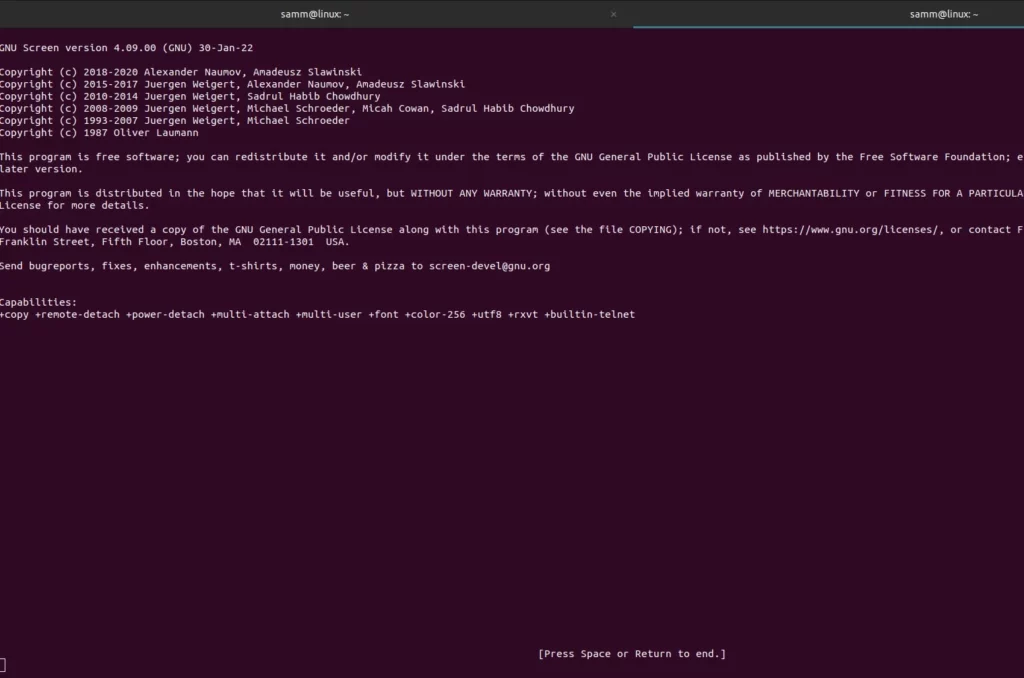
The initial launch begins with a brief licensing agreement displayed on the screen. Press Space to continue to the next page.
You can also name your screen session with the -S operator.
$ screen -S screen_name
This command will create a screen with the assigned name.
List all Screens
To list all screens you can use the ls option.
samm@linux:~$ screen -ls
There are screens on:
        63530.pts-3.linux       (08/04/2023 03:51:33 AM)        (Attached)
        62791.pts-0.linux       (08/04/2023 03:49:52 AM)        (Attached)
2 Sockets in /run/screen/S-samm.
Detach from Linux Screen
To detach from screen and leave the window running in the background, use the keystroke:
Ctrl + a and d
The command leaves the process working in Screen and exits the interface. It is the equivalent of minimizing a window in a graphical operating system.
To reattach to a running screen session, use:
$ screen -r
If you only have one Screen instance, you don’t need to enter the session ID. If you have more than one, you’ll need to specify which session ID you want to reconnect to.
Once you have the ID, add it to the screen -r command:
screen -r sessionID
For example, to restore screen 63530.pts-3.linux, run
$ screen -r 63530.pts-3.linux
Locking and Adding Passwords to Screen
To lock the screen, use the shortcut:
Ctrl + a and x
The default lock screen mechanism asks for your Linux password to unlock the screen.
Screen used by samm <samm> on linux.
Password:
Additionally, Screen allows you to protect a session with its own password. Each time you attempt to reattach to the screen, you need to provide the set password.
To create a password-protected screen, run the command:
password your_password
Replace your_passowrd with a strong password of your choice.
The next time you try to reattach to the password-protected screen, you have to provide two passwords to enter – your Linux password, followed by your Screen password.
Delete Linux Screen Session
To delete your screen session you can just type exit from your session.
If you need to delete the complete screen session you can use the following command.
$ screen -X -S screen_id quit
If you have any dead sessions you can use the below command.
screen -wipe
Manage Linux Screen
Whenever you start a new screen session, it creates a single window with a shell in it.
You can have multiple windows inside a single Screen session.
To create a new window with shell type Ctrl+a c, the first available number from the range 0…9 will be assigned to it.
Before diving into the advanced features of Linux Screen, familiarize yourself with some essential key commands, Below are some most common commands for managing Linux Screen Windows:
| Ctrl+a c | Create a new window (with shell). |
| Ctrl+a “ | List all windows. |
| Ctrl+a 0 | Switch to window 0 (by number). |
| Ctrl+a A | Rename the current window. |
| Ctrl+a S | Split current region horizontally into two regions. |
| Ctrl+a | | Split current region vertically into two regions. |
| Ctrl+a tab | Switch the input focus to the next region. |
| Ctrl+a Ctrl+a | Toggle between the current and previous windows |
| Ctrl+a Q | Close all regions but the current one. |
| Ctrl+a X | Close the current region. |
Conclusion
Linux Screen is a game-changer for multitasking in the terminal. With its ability to create multiple virtual terminal sessions within a single window, you can effectively manage diverse tasks and streamline your command-line interactions. By mastering the installation and usage of Linux Screen, you’re equipped to enhance your Linux productivity and efficiently navigate complex tasks with ease. Whether you’re a seasoned Linux user or a beginner, integrating Screen into your workflow is a step toward becoming a more proficient and efficient terminal user.
Also Read Our Other Guides :
- How To Use Rsync to Sync Local and Remote Directories in Linux
- How To Get Total Inodes and Increase Disk Inode Number in Linux
- How To Create and Use Swap File on Linux System
- How To Use Git Version Control on Linux: For Beginner
- The 40 Most-Used Linux Commands You Should Know
- 6 Methods To Search For Files By Name In Linux
Finally, now you have learned how to install and use Linux Screen with commands on Linux.