
Introduction
When it comes to serving web content efficiently, NGINX stands out as one of the most popular and powerful web servers. Its high performance, low resource usage, and flexibility have made it a top choice for hosting websites and handling high traffic. While you can install NGINX from the default Ubuntu repositories, compiling it from source gives you more control over the configuration and allows you to optimize it for your specific use case. In this article, we’ll guide you through the process of build nginx from Source on Ubuntu Server 22.04, providing you with a solid foundation to optimize performance, security, and meet the unique requirements of your web projects.
Table of Contents
Why Build NGINX from Source?
Building NGINX from source offers several advantages:
- Customization: You can tailor NGINX to include the modules and features that are essential for your website, while excluding unnecessary components, which reduces the server’s footprint.
- Latest Features: By compiling from source, you can access the latest NGINX features, bug fixes, and security updates that might not be immediately available in the official Ubuntu repositories.
- Performance: Optimizing the build process for your specific hardware and workload can result in better overall performance and responsiveness.
Prerequisites
Before we dive into the installation process, there are a few prerequisites you need to ensure are in place:
- Ubuntu Server: Make sure you have a clean installation of Ubuntu Server. You can deploy this on a physical machine or a virtual environment like VMware or VirtualBox. To set this up, follow our guide :
Build Nginx from Source on Ubuntu
This tutorial will guide you on installing the latest stable version of Nginx on Ubuntu from sources because official system repositories don’t provide a binary package.
Step 1: System Update
Before you start compiling NGINX from source, ensure your server is up to date:
samm@nginx:~$ sudo apt-get update
samm@nginx:~$ sudo apt-get upgrade
Step 2: Install Required Packages
In order to compile NGINX from the source first, we need to install a couple of dependencies for NGINX.
samm@nginx:~$ sudo apt-get install -y software-properties-common
samm@nginx:~$ sudo apt-get install -y build-essential
samm@nginx:~$ sudo apt-get install -y perl libperl-dev libgd3 libgd-dev libgeoip1 libgeoip-dev geoip-bin libxml2 libxml2-dev libxslt1.1 libxslt1-dev
Step 3: Download NGINX
Before you download the Nginx source code, you can visit official download page to see the Nginx version available now
samm@nginx:~$ cd /var
samm@nginx:/var$ sudo mkdir source
samm@nginx:/var$ cd source/

samm@nginx:/var/source$ sudo wget http://nginx.org/download/nginx-1.24.0.tar.gz  && sudo tar zxvf nginx-1.24.0.tar.gz
samm@nginx:/var/source$ sudo wget https://sourceforge.net/projects/pcre/files/pcre/8.45/pcre-8.45.tar.gz --no-check-certificate && sudo tar xzvf pcre-8.45.tar.gz
samm@nginx:/var/source$ sudo wget https://zlib.net/fossils/zlib-1.2.11.tar.gz && sudo tar xzvf zlib-1.2.11.tar.gz
samm@nginx:/var/source$ sudo wget https://www.openssl.org/source/openssl-3.1.0.tar.gz && sudo tar xzvf openssl-3.1.0.tar.gz
Go to the extracted directory by using this command
samm@nginx:/var/source$ cd nginx-1.24.0/
samm@nginx:/var/source/nginx-1.24.0$ sudo cp man/nginx.8 /usr/share/man/man8
samm@nginx:/var/source/nginx-1.24.0$ ls /usr/share/man/man8/ | grep nginx.8.gz
samm@nginx:/var/source/nginx-1.24.0$ man nginx
Step 4: Configure NGINX
Now is the time to configure Nginx that suits your need. The full documentation is in here: Building Nginx from Sources.
Now, configure NGINX with the desired modules and settings, using the ./configure command the --prefix option specifies the installation directory. We’ll add some common performance-enhancing options as well:
samm@nginx:/var/source/nginx-1.24.0$ sudo ./configure --prefix=/etc/nginx
            --sbin-path=/usr/sbin/nginx
            --modules-path=/usr/lib/nginx/modules
            --conf-path=/etc/nginx/nginx.conf
            --error-log-path=/var/log/nginx/error.log
            --pid-path=/var/run/nginx.pid
            --lock-path=/var/run/nginx.lock
            --user=nginx
            --group=nginx
            --build=Debian
            --builddir=nginx-1.24.0
            --with-select_module
            --with-poll_module
            --with-threads
            --with-file-aio
            --with-http_ssl_module
            --with-http_v2_module
            --with-http_realip_module
            --with-http_addition_module
            --with-http_xslt_module=dynamic
            --with-http_image_filter_module=dynamic
            --with-http_geoip_module=dynamic
            --with-http_sub_module
            --with-http_dav_module
            --with-http_flv_module
            --with-http_mp4_module
            --with-http_gunzip_module
            --with-http_gzip_static_module
            --with-http_auth_request_module
            --with-http_random_index_module
            --with-http_secure_link_module
            --with-http_degradation_module
            --with-http_slice_module
            --with-http_stub_status_module
            --with-http_perl_module=dynamic
            --with-perl_modules_path=/usr/share/perl/5.26.1
            --with-perl=/usr/bin/perl
            --http-log-path=/var/log/nginx/access.log
            --http-client-body-temp-path=/var/cache/nginx/client_temp
            --http-proxy-temp-path=/var/cache/nginx/proxy_temp
            --http-fastcgi-temp-path=/var/cache/nginx/fastcgi_temp
            --http-uwsgi-temp-path=/var/cache/nginx/uwsgi_temp
            --http-scgi-temp-path=/var/cache/nginx/scgi_temp
            --with-mail=dynamic
            --with-mail_ssl_module
            --with-stream=dynamic
            --with-stream_ssl_module
            --with-stream_realip_module
            --with-stream_geoip_module=dynamic
            --with-stream_ssl_preread_module
            --with-compat
            --with-pcre=../pcre-8.45
            --with-pcre-jit
            --with-zlib=../zlib-1.2.11
            --with-openssl=../openssl-3.1.0
            --with-openssl-opt=no-nextprotoneg
            --with-debug
Feel free to add more options based on your requirements. You can check available configuration options by running ./configure --help.
Step 5: Build NGINX from Source on Ubuntu 22.04
After custom configuration complete we can now compile NGINX source code by using this command :
samm@nginx:/var/source/nginx-1.24.0$ sudo make
This step might take some time, especially on a low-resource server. Be patient. and once that’s done install the compiled source code by using this command.
samm@nginx:/var/source/nginx-1.24.0$ sudo make install
To verify the installation, you can check the Nginx version
samm@nginx:~$ sudo nginx -V
nginx version: nginx/1.24.0 (Debian)
built by gcc 11.3.0 (Ubuntu 11.3.0-1ubuntu1~22.04)
built with OpenSSL 3.1.0 14 Mar 2023
TLS SNI support enabled
configure arguments: --prefix=/etc/nginx --sbin-path=/usr/sbin/nginx --modules-path=/usr/lib/nginx/modules --conf-path=/etc/nginx/nginx.conf --error-log-path=/var/log/nginx/error.log --pid-path=/var/run/nginx.pid --lock-path=/var/run/nginx.lock --user=nginx --group=nginx --build=Debian --builddir=nginx-1.24.0 --with-select_module --with-poll_module --with-threads --with-file-aio --with-http_ssl_module --with-http_v2_module --with-http_realip_module --with-http_addition_module --with-http_xslt_module=dynamic --with-http_image_filter_module=dynamic --with-http_geoip_module=dynamic --with-http_sub_module --with-http_dav_module --with-http_flv_module --with-http_mp4_module --with-http_gunzip_module --with-http_gzip_static_module --with-http_auth_request_module --with-http_random_index_module --with-http_secure_link_module --with-http_degradation_module --with-http_slice_module --with-http_stub_status_module --with-http_perl_module=dynamic --with-perl_modules_path=/usr/share/perl/5.26.1 --with-perl=/usr/bin/perl --http-log-path=/var/log/nginx/access.log --http-client-body-temp-path=/var/cache/nginx/client_temp --http-proxy-temp-path=/var/cache/nginx/proxy_temp --http-fastcgi-temp-path=/var/cache/nginx/fastcgi_temp --http-uwsgi-temp-path=/var/cache/nginx/uwsgi_temp --http-scgi-temp-path=/var/cache/nginx/scgi_temp --with-mail=dynamic --with-mail_ssl_module --with-stream=dynamic --with-stream_ssl_module --with-stream_realip_module --with-stream_geoip_module=dynamic --with-stream_ssl_preread_module --with-compat --with-pcre=../pcre-8.45 --with-pcre-jit --with-zlib=../zlib-1.2.11 --with-openssl=../openssl-3.1.0 --with-openssl-opt=no-nextprotoneg --with-debug
Step 6: Set Up Folder and User NGINX
samm@nginx:~$ sudo mkdir -p /var/cache/nginx/{client_temp,fastcgi_temp,proxy_temp,scgi_temp,uwsgi_temp}

samm@nginx:~$ sudo chmod 700 /var/cache/nginx/*
samm@nginx:~$ sudo chown nginx:nginx /var/cache/nginx/*

samm@nginx:~$ sudo mkdir /etc/nginx/{conf.d,snippets,ssl}
samm@nginx:~$ sudo chmod 640 /var/log/nginx/*
samm@nginx:~$ sudo chown nginx:nginx /var/log/nginx/access.log /var/log/nginx/error.log

samm@nginx:~$ mkdir ~/.vim/
samm@nginx:~$ sudo cp -r /var/source/nginx-1.24.0/contrib/vim/* ~/.vim/
samm@nginx:~$ sudo mkdir /root/.vim/
samm@nginx:~$ sudo cp -r /var/source/nginx-1.24.0/contrib/vim/* /root/.vim/
samm@nginx:~$ sudo ln -s /usr/lib/nginx/modules /etc/nginx/modules
samm@nginx:~$ sudo adduser --system --home /nonexistent --shell /bin/false --no-create-home --disabled-login --disabled-password --gecos "nginx user" --group nginx

samm@nginx:~$ sudo tail -n 1 /etc/passwd /etc/group /etc/shadow
==> /etc/passwd <==
nginx:x:111:1200:nginx user,,,:/nonexistent:/bin/false
==> /etc/group <==
nginx:x:115:
==> /etc/shadow <==
nginx:!:19333:0:99999:7:::
Step 7: Create Systemd File
To make Nginx easier to manage, such as enable the service, we’re going to have to add a small script, which is the same across operating systems.
samm@nginx:~$ sudo vim /etc/systemd/system/nginx.service
And then copy & paste this config to the file :
[Unit]
Description=Nginx - High Performance Webserver
Documentation=https://nginx.org/en/docs/
After=network-online.target remote-fs.target nss-lookup.target
Wants=network-online.target

[Service]
UMask=0002
Type=forking
PIDFile=/var/run/nginx.pid
ExecStartPre=/usr/sbin/nginx -t -c /etc/nginx/nginx.conf
ExecStart=/usr/sbin/nginx -c /etc/nginx/nginx.conf
ExecReload=/bin/kill -s HUP $MAINPID
ExecStop=/bin/kill -s TERM $MAINPID

[Install]
WantedBy=multi-user.target
After that, reload the systemd
samm@nginx:~$ sudo systemctl daemon-reload
Enable Nginx service so it will auto start when the server boot
samm@nginx:~$ sudo systemctl enable nginx.service
Created symlink /etc/systemd/system/multi-user.target.wants/nginx.service → /etc/systemd/system/nginx.service.

samm@nginx:~$ sudo systemctl start nginx.service
samm@nginx:~$ sudo systemctl is-enabled nginx.service
enabled

samm@nginx:~$ sudo systemctl status nginx.service
● nginx.service - SAMM Nginx 1.24.0 - High Performance Webserver
     Loaded: loaded (/etc/systemd/system/nginx.service; enabled; vendor preset: enabled)
    Drop-In: /etc/systemd/system/nginx.service.d
             └─override.conf
     Active: active (running) since Mon 2023-08-14 20:16:41 WIB; 2min ago
       Docs: https://nginx.org/en/docs/
    Process: 1428 ExecStartPre=/usr/sbin/nginx -t -c /etc/nginx/nginx.conf (code=exited, status=0/SUCCESS)
    Process: 1463 ExecStart=/usr/sbin/nginx -c /etc/nginx/nginx.conf (code=exited, status=0/SUCCESS)
    Process: 1476 ExecStartPost=/bin/sleep 0.1 (code=exited, status=0/SUCCESS)
   Main PID: 1473 (nginx)
      Tasks: 3 (limit: 28428)
     Memory: 10.5M
        CPU: 54ms
     CGroup: /system.slice/nginx.service
             ├─1473 "nginx: master process /usr/sbin/nginx -c /etc/nginx/nginx.conf"
             ├─1474 "nginx: worker process" "" "" "" "" "" "" "" "" "" "" "" "" "" "" "" "" "" "" ""
             └─1475 "nginx: worker process" "" "" "" "" "" "" "" "" "" "" "" "" "" "" "" "" "" "" ""

Aug 14 20:16:41 samm systemd[1]: Starting SAMM Nginx 1.24.0 - High Performance Webserver...
Aug 14 20:16:41 samm nginx[1428]: nginx: the configuration file /etc/nginx/nginx.conf syntax is ok
Aug 14 20:16:41 samm nginx[1428]: nginx: configuration file /etc/nginx/nginx.conf test is successful
Aug 14 20:16:41 samm systemd[1]: Started SAMM Nginx 1.24.0 - High Performance Webserver.
Step 8: Create Custom “nginx.conf” File
samm@nginx:~$ sudo mv /etc/nginx/nginx.conf /etc/nginx/nginx.conf.ori
samm@nginx:~$ sudo vi /etc/nginx/nginx.conf
user            nginx;
worker_processes    2;

error_log       /var/log/nginx/error.log warn;
pid         /var/run/nginx.pid;


events {
  worker_connections    1024;
}


http {
    include     /etc/nginx/mime.types;
    default_type    application/octet-stream;

    ## Block spammers and other unwanted visitors  ##
    #  include block-ip.conf;

    server_tokens   off;

    proxy_http_version  1.1;
    proxy_set_header    Connection "";

    proxy_set_header    Host $host;
    proxy_set_header    Upgrade $http_upgrade;
    proxy_set_header    Connection "upgrade";
    proxy_set_header    X-Real-IP       $remote_addr;
    proxy_set_header    X-Forwarded-For $proxy_add_x_forwarded_for;

    add_header      "Strict-Transport-Security" "max-age=31536000";
    add_header      "X-XSS-Protection" "1; mode=block";
    add_header      "X-Content-Type-Options" "nosniff";
    add_header      "X-Permitted-Cross-Domain-Policies" "none";

    log_format  main    '$remote_addr - $remote_user [$time_local] "$request" '
                        '$status $body_bytes_sent "$http_referer" '
                        '"$http_user_agent" "$http_x_forwarded_for"';

    access_log          /dev/null;
    error_log           /dev/null;

    sendfile        on;
   #tcp_nopush      on;

    keepalive_timeout   65;

    client_body_buffer_size     50M;
    client_max_body_size        50M;

        gzip            on;
        gzip_http_version   1.1;
        gzip_comp_level     5;
        gzip_min_length     256;
        gzip_proxied        any;
        gzip_vary       on;
        gzip_types
                application/atom+xml
                application/javascript
                application/json
                application/rss+xml
                application/vnd.ms-fontobject
                application/x-font-ttf
                application/x-web-app-manifest+json
                application/xhtml+xml
                application/xml
                font/opentype
                image/svg+xml
                image/x-icon
                text/css
                text/plain
                text/x-component;
        gzip_disable        "MSIE [1-6].";

    include /etc/nginx/conf.d/*.conf;
}
Restart Nginx web server after the configuration.
samm@nginx:~$ sudo nginx -t
nginx: the configuration file /etc/nginx/nginx.conf syntax is ok
nginx: configuration file /etc/nginx/nginx.conf test is successful

samm@nginx:~$ sudo systemctl restart nginx
Step 9: Create Logrotate File
Logrotate is useful for rotating the Nginx log so it will not write on a single file continuously. First, create a new file on the logrotate folder.
samm@nginx:~$ sudo vi /etc/logrotate.d/nginx
Copy and Paster this code
/var/log/nginx/*.log {
    daily
    missingok
    rotate 52
    compress
    delaycompress
    notifempty
    create 0644 nginx nginx
    sharedscripts
    postrotate
            if [ -f /var/run/nginx.pid ]; then
                    kill -USR1 `cat /var/run/nginx.pid`
            fi
    endscript
}
samm@nginx:~$ sudo logrotate -f /etc/logrotate.d/nginx
Step 10: Configure Firewall Rules
If you’re using a firewall, allow HTTP (80) and HTTPS (443) traffic:
samm@nginx:~$ sudo ufw allow http
samm@nginx:~$ sudo ufw allow https
samm@nginx:~$ sudo ufw reload
Step 11: Testing NGINX
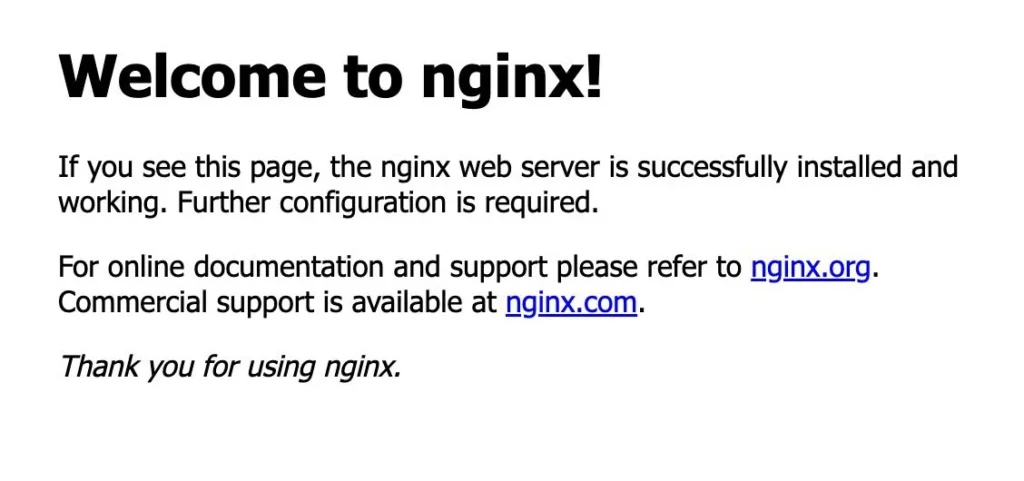
Finally, verify that NGINX is running by accessing your server’s IP address or domain name in a web browser. You should see the default NGINX welcome page.
http://<your-nginx-ip-address>
Conclusion
Finally, building NGINX from source on Ubuntu Server 22.04 allows you to create a customized, high-performance web server tailored to your specific requirements. By following the steps in this guide, you’ll gain valuable insights into the compilation process and have a solid foundation for optimizing NGINX to enhance the performance, and security. Remember to periodically check for NGINX updates and recompile as needed to ensure you’re benefiting from the latest features and improvements.
Also Read Our Other Guides :
- How To Install Nginx on Ubuntu 22.04: A Comprehensive Guide
- How To Install Apache 2.4 on Ubuntu Server 22.04
- How To Build NGINX from Source (Compile) on Debian 11
- How To Build NGINX from Source (Compile) on Centos7
- How To Build NGINX from Source (Compile) on Rocky Linux 9
That’s it! Now you build NGINX from source (compile) and put in modules that you want to include in Nginx.
Finally, now you have learned how to build nginx from Source on Ubuntu 22.04.