Introduction
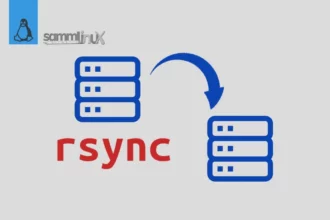
In the world of Linux, efficient data management is key, and Rsync stands out as a potent tool for synchronizing files and directories between local and remote systems seamlessly. This comprehensive guide will walk you through the process “How To Use Rsync to Sync Local and Remote Directories on your Linux system”. By the end of this guide, you’ll have a solid understanding of how to optimize your data synchronization workflow.
Table of Contents
Understanding the Significance of Data Synchronization
Effective data synchronization is vital in maintaining consistency across multiple systems. Whether you’re a developer collaborating on a project or a system administrator managing critical files, ensuring data is mirrored accurately between local and remote systems is imperative.
Prerequisites
In order to practice using rsync to sync files between a local and remote system, you will need two machines to act as your local computer and your remote machine, respectively. These two machines could be virtual private servers, virtual machines, containers, or personal computers as long as they’ve been properly configured.
If you plan to follow this guide using servers, it would be prudent to set them up with administrative users and to configure a firewall on each of them. To set up these servers, follow our guides :
- Initial Setup Debian 11 Server: Secure and Efficient
- Initial Setup Ubuntu Server 22.04: Secure and Efficient
- Initial Setup Rocky Linux 9 Server: Secure and Efficient
- Initial Setup CentOS 7 Server: Secure and Efficient
Setting Up Rsync on Your Linux
Before delving into using Rsync, ensure it’s available on your Linux distribution. The installation process varies:
CentOS:
sudo yum update
sudo yum install rsync
Rocky Linux
sudo dnf update
sudo dnf install rsync
Debian/Ubuntu
sudo apt update
sudo apt install rsync
OpenSUSE
sudo zypper update
sudo zypper install rsync
Rsync Syntax for Directory Sync
The fundamental syntax of Rsync is as follows:
rsync [optional] [source] [destination]- Options: These fine-tune the synchronization process.
- Source: The directory or file you want to sync.
- Destination: The target location for synchronization.
There are optional modifiers that function to determine the action of our command. A group of main options from rsync includes:
| -r | Recursive. Include directories and subdirectories as well as any files contained within the subdirectories. |
| -a | Archive. The complete version from –r, where –a is an alias from group of options: -rlptgoD Include the recursion option, preserves authorizations, file modification date/time, and group as well as user ownership. |
| -v | Verbose. Displays a list of files that were copied during the sync process. |
| –delete | Delete, if the destination directory includes a folder or file which is missing from the source directory, delete it (can be done vice versa). |
| -z | Compress the files that we will synchronize so that the file size can be much smaller. Rsync is smart enough to determine which file types need to be compressed or not |
| –exclude | Specify which file or folder patterns we want to exclude from the sync process. |
| –include | The opposite of the –exclude option, it defines a pattern of file or directory names to include in the sync process. Usually, users combine the “option include” with the “option exclude”. |
| –dry-run | Only shows what process your command will do without actually doing it. |
| –progress | It displays the Kb transferred, and the Kb/s transfer rate. |
Syncing Local to Remote
To synchronize a local directory with a remote one, employ the following command structure:
rsync -avz /path/to/local/directory username@remote:/path/to/remote/directory
Replace “/path/to/local/directory” with the source directory on your local system. Replace “username” with your username on the remote system, and “remote:/path/to/remote/directory” with the destination directory on the remote system.
Syncing Remote to Local
Synchronizing a remote directory with a local one is similarly straightforward:
rsync -avz username@remote:/path/to/remote/directory /path/to/local/directory
Replace “username” with your username on the remote system, “remote:/path/to/remote/directory” with the source directory on the remote system, and “/path/to/local/directory” with the destination directory on your local system.
Exclude Files or Directories in Rsync
You can exclude specific files or directories from the synchronization process using the --exclude option. For example, to exclude a directory named “logs” from being synced, modify the command as follows:
rsync -avz --exclude 'logs/' /path/to/local/directory username@remote:/path/to/remote/directory
Preserve File Permissions and Ownership
If you want to preserve file permissions and ownership during the synchronization, you can add the --perms and --owner options to the command:
rsync -avz --perms --owner /path/to/local/directory username@remote:/path/to/remote/directory
Automation Made Easy: Scheduling Sync Tasks with Cron
Cron jobs let you automate Rsync synchronizations:
- Open the terminal and type
crontab -e. - Add a line with your desired schedule and Rsync command. For instance, syncing daily at midnight:
0 0 * * * rsync -avz /path/to/local/directory user@remote:/path/to/remote/directory
Ensuring Security in Data Synchronization
When dealing with remote systems, prioritize security. Utilize secure protocols like SSH for encrypted connections to maintain data integrity.
Conclusion
Using Rsync, you can easily sync local and remote directories, allowing for efficient file synchronization between different systems. By following the steps outlined in this guide, you can ensure that your files and directories remain up to date and consistent across multiple locations. Rsync’s versatility and flexibility make it a reliable choice for various synchronization tasks, including backups, data transfers, and mirroring. Experiment with different options and explore additional features of Rsync to tailor the synchronization process according to your specific requirements.
Also Read Our Other Guides :
- How To Backup Files From Remote Linux VPS Using Rsync Script
- How To Get Total Inodes and Increase Disk Inode Number in Linux
- How To Create and Use Swap File on Linux System
- How To Use Git Version Control on Linux: For Beginner
- The 40 Most-Used Linux Commands You Should Know
- 6 Methods To Search For Files By Name In Linux
- How To Find Hard Disk Drive Information in Linux
Finally, now you have learned How To Use Rsync to Sync Local and Remote Directories in Linux.