Introduction
In the constantly changing field of software development and continuous integration and continuous delivery (CI/CD), Jenkins shines as a symbol of efficiency and automation. Jenkins is an open-source tool that can make your development process smoother by helping you build, test, and deploy your code more easily. If you’re using Ubuntu 22.04 and want to improve your development workflow, this detailed guide will guide you through each step of How To Install Jenkins on Ubuntu 22.04. It will make sure your projects operate smoothly and efficiently.
Table of Contents
Key Features of Jenkins
Some of the key features and functionalities of Jenkins include:
- Continuous Integration: Jenkins allows developers to automatically build and test code changes whenever new code is committed to a version control repository. This ensures that the changes integrate smoothly with the existing codebase and helps identify and fix issues early in the development process.
- Continuous Delivery/Deployment: Jenkins supports continuous delivery by automating the process of packaging and deploying code changes to various environments, such as staging or production, once they pass the necessary tests.
- Easy Configuration: Jenkins provides a web-based user interface that allows users to configure jobs and pipelines visually without the need for writing complex scripts.
- Pipelines: Jenkins supports defining build and deployment pipelines as code, often written in the Groovy scripting language. These pipelines enable more complex workflows and give teams better visibility into the entire CI/CD process.
Prerequisites
Before we dive into the installation process how to Install Jenkins on Ubuntu, there is prerequisite you need to ensure are in place:
- Ubuntu Server: Make sure you have a clean installation of Ubuntu Server. You can deploy this on a physical machine or a virtual environment like VMware or VirtualBox. To set this up, follow our guide :
- install Java 8 or 11 on Ubuntu.
- A stable internet connection.
Install Jenkins on Ubuntu 22.04
To Install Jenkins on Ubuntu 22.04, just follow these simple steps.
Step 1: System Update
Begin by updating the package list and upgrading current packages.
samm@jenkins:~$ sudo apt update
samm@jenkins:~$ sudo apt upgrade
Step 2: Install Java
Jenkins requires the Java Runtime Environment (JRE). This guide uses OpenJDK for the Java environment. OpenJDK is a Development Kit, and includes the Java Runtime Environment.
Currently, as of writing this article, Jenkins exclusively supports Java 8 and Java 11 on Ubuntu. It’s important to note that you have the ability to install multiple versions of Java on your Ubuntu system. If you have multiple versions installed, make sure to designate Java 8 or Java 11 as the default version.
Follow the steps below to install Java on Ubuntu:
Being a Java application, Jenkins requires Java 8 and later versions to run without any issues. Run the command to check if Java is installed on your system.
samm@jenkins:~$  java --version
openjdk 17.0.8 2023-07-18
OpenJDK Runtime Environment (build 17.0.8+7-Ubuntu-122.04)
OpenJDK 64-Bit Server VM (build 17.0.8+7-Ubuntu-122.04, mixed mode, sharing)
Step 3: Add Jenkins Repository on Ubuntu 22.04
You have the option to download the Jenkins package through the official Jenkins link by utilizing the curl command. Subsequently, executing the following command will transfer the package data to your local repository.
[Important Notice]
Beginning with LTS 2.387.2 and weekly 2.397, releases will be signed with a new GPG key. Administrators must install the new key on their servers before attempting to update Jenkins.
Read more about the key rotation on the blog.
This repository for Jenkins is intended for automated installation and upgrades on Debian systems. To make use of this repository, start by adding the key to your system.
samm@jenkins:~$ curl -fsSL https://pkg.jenkins.io/debian-stable/jenkins.io-2023.key | sudo tee
   /usr/share/keyrings/jenkins-keyring.asc > /dev/null
Then add a Jenkins apt repository entry:
samm@jenkins:~$ echo deb [signed-by=/usr/share/keyrings/jenkins-keyring.asc]
    https://pkg.jenkins.io/debian-stable binary/ | sudo tee
    /etc/apt/sources.list.d/jenkins.list > /dev/null
After activating Jenkins repository, run the following command to update apt packages list and let the system know that you have recently added a new repository.
samm@jenkins:~$ sudo apt update
Step 4: Install Jenkins on Ubuntu 22.04
With everything configured, proceed to install Jenkins and all its dependencies using the apt package manager.
samm@jenkins:~$ sudo apt install jenkins
Wait for the download and installation to complete.
Reading package lists... Done
Building dependency tree... Done
Reading state information... Done
The following NEW packages will be installed:
  jenkins
0 upgraded, 1 newly installed, 0 to remove and 0 not upgraded.
Need to get 95.7 MB of archives.
After this operation, 98.5 MB of additional disk space will be used.
Get:1 https://pkg.jenkins.io/debian-stable binary/ jenkins 2.401.3 [95.7 MB]
Fetched 95.7 MB in 19s (5,092 kB/s)
Selecting previously unselected package jenkins.
(Reading database ... 104219 files and directories currently installed.)
Preparing to unpack .../jenkins_2.401.3_all.deb ...
Unpacking jenkins (2.401.3) ...
Setting up jenkins (2.401.3) ...
Created symlink /etc/systemd/system/multi-user.target.wants/jenkins.service → /lib/systemd/system/jenkins.service.
Scanning processes...
Scanning candidates...
Scanning linux images...
Once the installation is complete, Jenkins should start automatically. To confirm this, run the command:
samm@jenkins:~$ sudo systemctl status jenkins
Output:
● jenkins.service - Jenkins Continuous Integration Server
     Loaded: loaded (/lib/systemd/system/jenkins.service; enabled; vendor preset: enabled)
     Active: active (running) since Tue 2023-08-08 05:37:52 WIB; 3min 25s ago
   Main PID: 100493 (java)
      Tasks: 47 (limit: 4556)
     Memory: 1.1G
        CPU: 55.008s
     CGroup: /system.slice/jenkins.service
             └─100493 /usr/bin/java -Djava.awt.headless=true -jar /usr/share/java/jenkins.war --webroot=/var/cache/jenkins/war --httpPort=8>

Aug 08 05:37:30 jenkins jenkins[100493]: ee7033f181ac4e40b76f46489da91f9e
Aug 08 05:37:30 jenkins jenkins[100493]: This may also be found at: /var/lib/jenkins/secrets/initialAdminPassword
Aug 08 05:37:30 jenkins jenkins[100493]: *************************************************************
Aug 08 05:37:30 jenkins jenkins[100493]: *************************************************************
Aug 08 05:37:30 jenkins jenkins[100493]: *************************************************************
Aug 08 05:37:52 jenkins jenkins[100493]: 2023-08-07 22:37:52.755+0000 [id=34]        INFO        jenkins.InitReactorRunner$1#onAttained: Co>
Aug 08 05:37:52 jenkins jenkins[100493]: 2023-08-07 22:37:52.797+0000 [id=25]        INFO        hudson.lifecycle.Lifecycle#onReady: Jenkin>
Aug 08 05:37:52 jenkins systemd[1]: Started Jenkins Continuous Integration Server.
Aug 08 05:37:53 jenkins jenkins[100493]: 2023-08-07 22:37:53.868+0000 [id=53]        INFO        h.m.DownloadService$Downloadable#load: Obt>
Aug 08 05:37:53 jenkins jenkins[100493]: 2023-08-07 22:37:53.869+0000 [id=53]        INFO        hudson.util.Retrier#start: Performed the a>
lines 1-20/20 (END)
Exit the status screen by pressing Ctrl+Z.
Step 5: Configure Firewall to Allow Jenkins
As we’ve discussed, Jenkins default listens on port 8080. Therefore, if you’ve installed Jenkins on a server with UFW enabled, it’s essential to open this port to allow traffic.
To enable firewall on Ubuntu 22.04 run,
samm@jenkins:~$ sudo ufw enable
Command may disrupt existing ssh connections. Proceed with operation (y|n)? y
Firewall is active and enabled on system startup
To open port 8080 on ufw firewall, run the command:
samm@jenkins:~$ sudo ufw allow 8080/tcp
Rule added
Rule added (v6)
Then reload the firewall to effect the changes.
samm@jenkins:~$ sudo ufw reload
Firewall reloaded
To confirm that port 8080 is open on the firewall, execute the command:
samm@jenkins:~$ sudo ufw status
Status: active

To                         Action      From
--                         ------      ----
22/tcp                     ALLOW       Anywhere
80/tcp                     ALLOW       Anywhere
443                        ALLOW       Anywhere
8080/tcp                   ALLOW       Anywhere
You have now configured the firewall, and you can proceed to set up Jenkins.
Step 6: Setup Jenkins
To set up Jenkins, go to your browser and open http://[your-ip-address-jenkins]:8080 where Jenkins server is running.
The Unlock Jenkins screen will appear as shown below, asking for the administrator password.
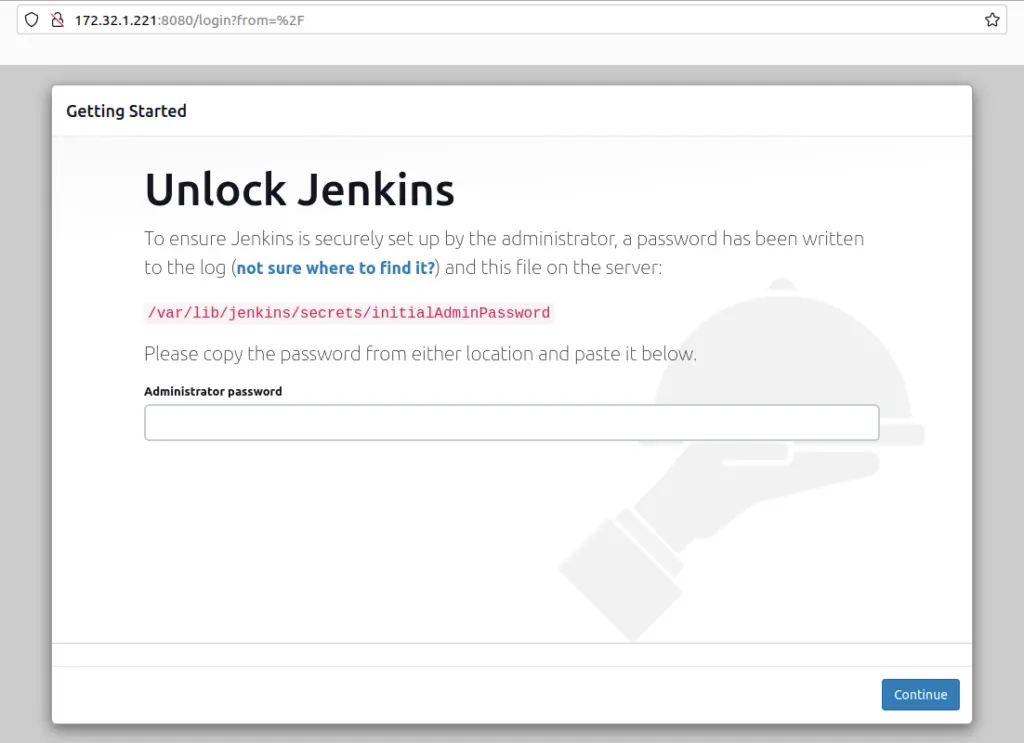
Upon default setup, you will receive a 32-character alphanumeric initial admin password, enabling you to log in to the Jenkins dashboard. Later, you can create an admin user and password.
Open the terminal and run the command below to get the initial credential to unlock Jenkins.
samm@jenkins:~$ sudo cat /var/lib/jenkins/secrets/initialAdminPassword

ee7033f181ac4e40b76f46489da91f9e
At this point, copy and paste the provided password onto the “Unlock Jenkins” page in your browser, and then proceed by clicking on “continue.”
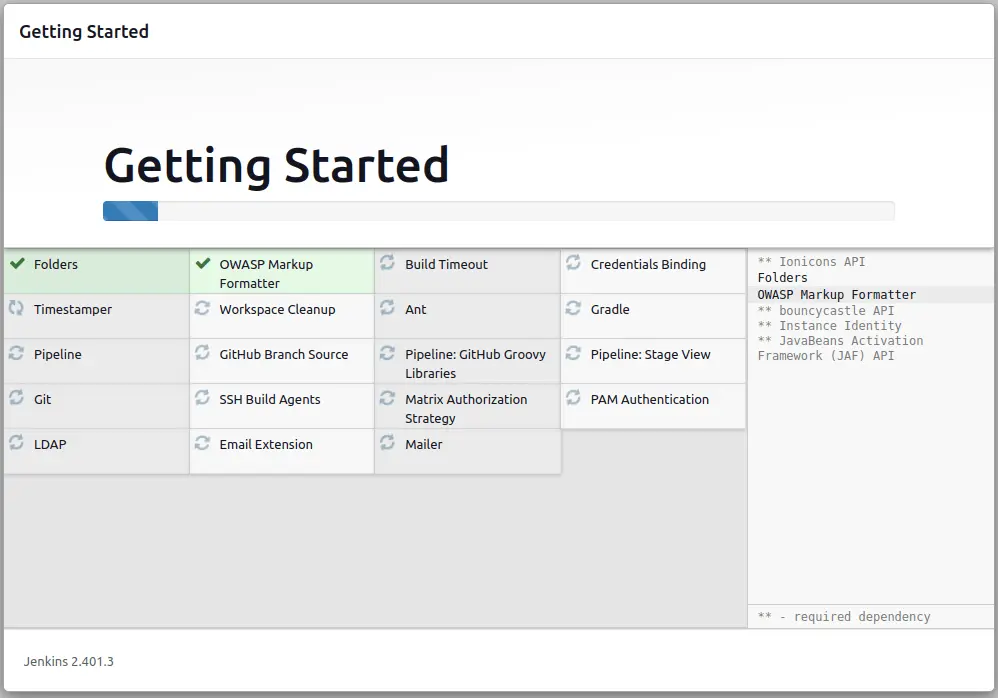
Next, you need to customize Jenkins and install plugins. You can either select plugins of your choice or install suggested plugins, which are the most widely used plugins by the community.
It may take a couple of minutes to install all suggested plugins.
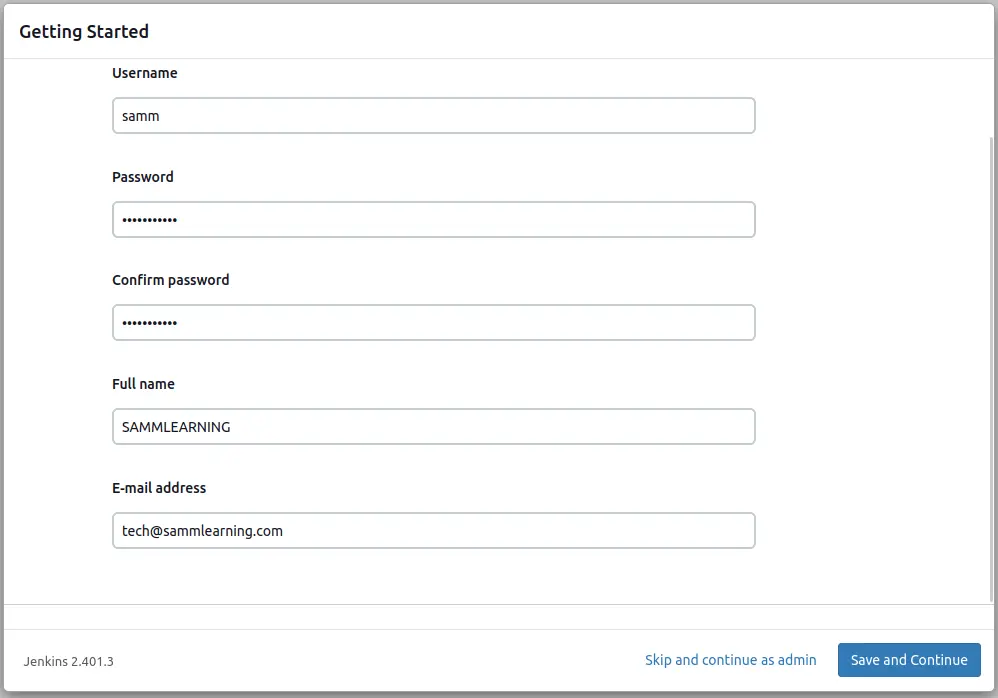
After the plugins have been installed, you’ll receive a prompt to create your initial admin user. Once you’ve filled out the necessary fields, click “Save and continue. You also have the option to skip this step and continue as Admin.
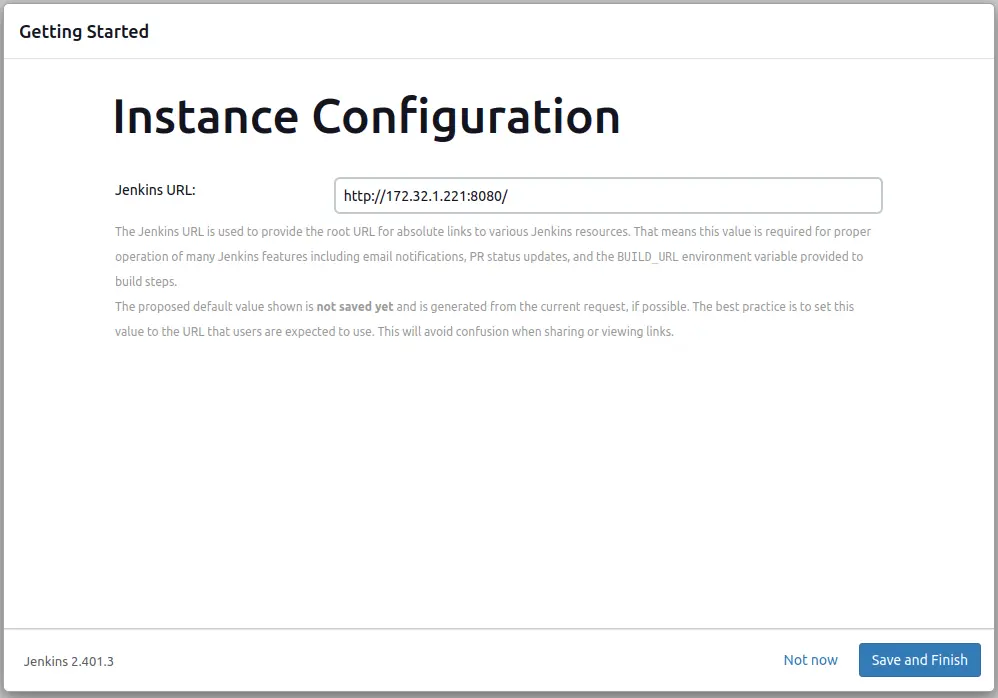
Moving forward, in the subsequent step, you need to indicate the Jenkins URL where the Jenkins instance will be set up to operate. Enter either a domain name or an IP address followed by port 8080, and then proceed by clicking “Save and Finish.”
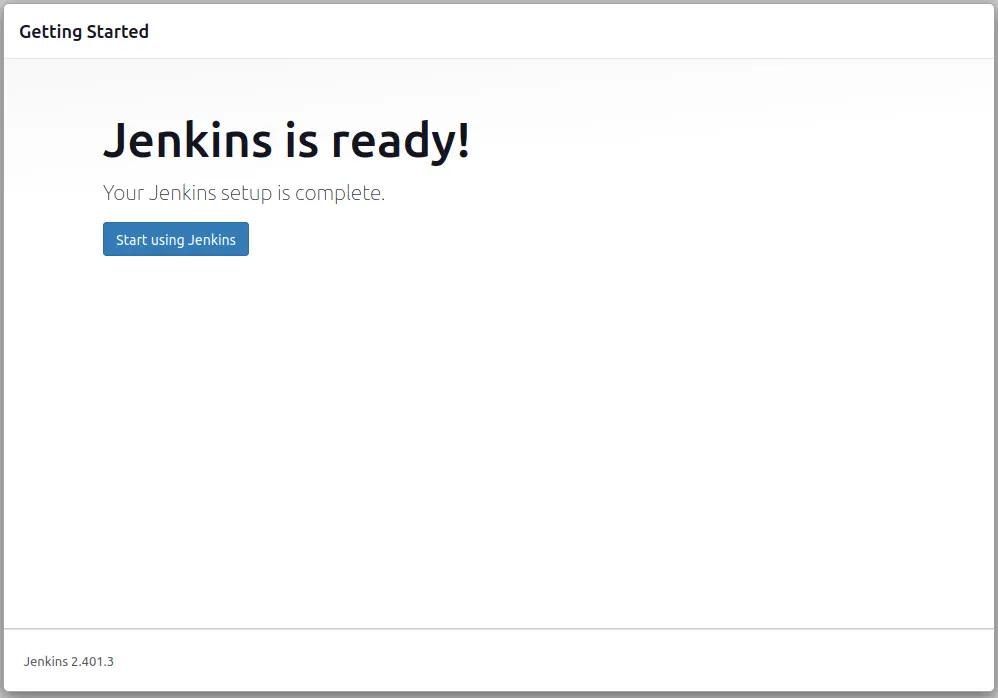
You should now get a confirmation message “Jenkins is ready!”. Click Start using Jenkins:
Finally, Jenkins dashboard will open where you can start creating your pipeline jobs.
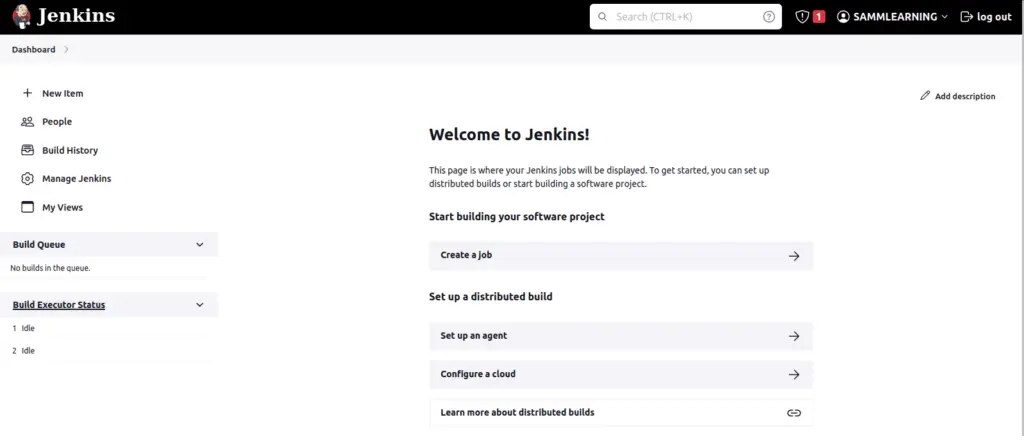
You have now successfully installed Jenkins on Ubuntu Server 22.04.
Conclusion
Congratulations! You’ve successfully Install Jenkins on Ubuntu 22.04 environment. Jenkins opens the doors to continuous integration, automated testing, and efficient software delivery. By following this comprehensive guide, you’ve gained the knowledge to create your first Jenkins job and customize Jenkins to suit your project’s needs. Embrace the power of Jenkins to enhance your development workflow and achieve higher levels of productivity and reliability.
Also Read Our Other Guides :
- How To Install Java Using OpenJDK 17 on Ubuntu 22.04
- How To Install and Config Git on Ubuntu 22.04
- How To Install and Configure Ansible on Rocky Linux 9
- How To Secure Nginx with Let’s Encrypt on Rocky Linux 9
- How To Install and Use TeamViewer on Ubuntu 22.04
Finally, now you have learned how to Install Jenkins on Ubuntu 22.04.