Introduction
In the world of web development and data management, MySQL stands as one of the most popular and powerful relational database management systems. Its latest version, MySQL 8.0, comes with enhanced features that provide better performance, security, and scalability. If you’re running an Debian 11, this article will guide you through the step-by-step process of installing MySQL 8.0 on Debian 11, ensuring a smooth setup for efficient data handling.
Table of Contents
MySQL is an open-source relational database management system (RDBMS) that is widely used for managing and organizing structured data. It is one of the most popular and widely adopted database systems in the world. MySQL is known for its ease of use, scalability, and performance.
Prerequisites
Before we dive into Install MySQL 8.0 on Debian 11, there is prerequisite you need to ensure are in place:
- Debian 11 : Make sure you have a clean installation of Debian 11. To set this up, follow our guide Initial Setup Debian 11 Server: Secure and Efficient. You can deploy this on a physical machine or a virtual environment like VMware or VirtualBox.
Installing MySQL 8.0 on Debian 11
In this guide you are going to learn how to install latest MySQL community server on Debian.
Step 1: System Update
Update the package lists by running the following command:
samm@mysql:~$ sudo apt-get update -y && sudo apt-get upgrade -y
Step 2: Install MySQL 8.0 APT Repository
Debian 11 doesn’t ship with MySQL 8.0 on its default repositories.
samm@mysql:~$ apt show mysql-server
Package: mysql-server
State: not a real package (virtual)
N: Can't select candidate version from package mysql-server as it has no candidate
N: Can't select versions from package 'mysql-server' as it is purely virtual
N: No packages found
The recommended way to install MySQL 8 on Debian 11 is via the MySQL APT repository.
Consequently, you are required to install the MySQL APT repository on Debian 11. This installation step renders the process of MySQL 8 installation exceptionally seamless.
Download MySQL 8 APT repository installer;
samm@mysql:~$ wget https://repo.mysql.com/mysql-apt-config_0.8.25-1_all.deb

samm@mysql:~$ sudo dpkg -i mysql-apt-config_0.8.25-1_all.deb
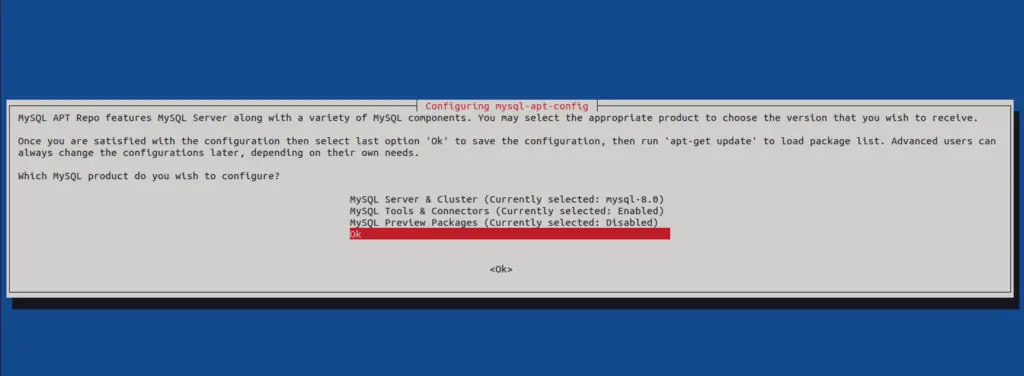
Next, on the MySQL product, select Ok and press TAB key to select Ok. Press ENTER to proceed to install the repository.
If successful the output should be similar to below.
Step 3: Install MySQL 8.0 on Debian 11
Next, update packages and install MySQL
samm@mysql:~$ sudo apt update
samm@mysql:~$ sudo apt install mysql-server
Proceed to install MySQL packages and all its dependencies:
samm@mysql:~$ sudo apt install mysql-server
Reading package lists... Done
Building dependency tree... Done
Reading state information... Done
The following additional packages will be installed:
  libmecab2 mecab-ipadic mecab-ipadic-utf8 mecab-utils mysql-client mysql-common mysql-community-client mysql-community-client-core mysql-community-client-plugins
  mysql-community-server mysql-community-server-core psmisc
The following NEW packages will be installed:
  libmecab2 mecab-ipadic mecab-ipadic-utf8 mecab-utils mysql-client mysql-common mysql-community-client mysql-community-client-core mysql-community-client-plugins
  mysql-community-server mysql-community-server-core mysql-server psmisc
0 upgraded, 13 newly installed, 0 to remove and 1 not upgraded.
Need to get 42.5 MB of archives.
After this operation, 362 MB of additional disk space will be used.
Do you want to continue? [Y/n] Y
During the installation, you are prompted to set MySQL 8 root password

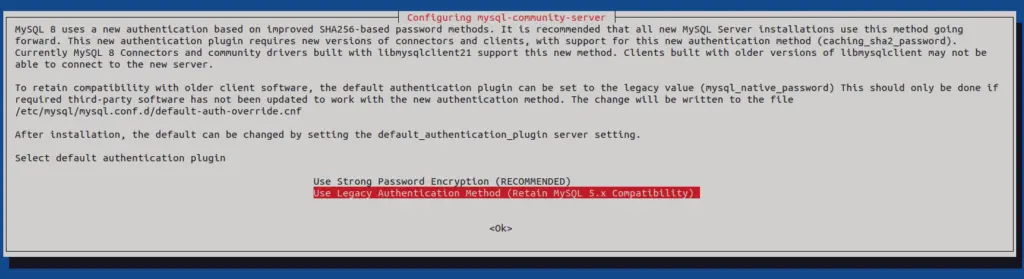
Set MySQL 8 default authentication plugin. For this tutorial we use “Use Legacy Authentication Method (Retain MySQL 5.x Compatibility)”
Check version installed using the apt-policy command:
samm@mysql:~$ apt policy mysql-server
mysql-server:
  Installed: 8.0.33-1debian11
  Candidate: 8.0.33-1debian11
  Version table:
 *** 8.0.33-1debian11 500
        500 http://repo.mysql.com/apt/debian bullseye/mysql-8.0 amd64 Packages
        100 /var/lib/dpkg/status
Step 4: Check Status and Enable MySQL
Now run the following commands to check MySQL
samm@mysql:~$ sudo systemctl status mysql
● mysql.service - MySQL Community Server
     Loaded: loaded (/lib/systemd/system/mysql.service; enabled; vendor preset: enabled)
     Active: active (running) since Wed 2023-06-21 04:20:21 WIB; 4min 19s ago
       Docs: man:mysqld(8)
             http://dev.mysql.com/doc/refman/en/using-systemd.html
   Main PID: 3313 (mysqld)
     Status: "Server is operational"
      Tasks: 37 (limit: 1113)
     Memory: 384.6M
        CPU: 2.273s
     CGroup: /system.slice/mysql.service
             └─3313 /usr/sbin/mysqld

Jun 21 04:20:20 mysql systemd[1]: Starting MySQL Community Server...
Jun 21 04:20:21 mysql systemd[1]: Started MySQL Community Server.
Now check is enable or not, to automatically start on system reboot
samm@mysql:~$ sudo systemctl is-enabled mysql
enabled
If not enabled, you can enable it using this command:
samm@mysql:~$ sudo systemctl enable mysql
Step 5: Secure MySQL Installation
MySQL ships with a security script called mysql_secure_installation that enables you to implement initial security of MySQL installation in the following ways:
- You can set a password for root accounts.
- You can remove root accounts that are accessible from outside the local host.
- You can remove anonymous-user accounts.
- You can remove the test database (which by default can be accessed by all users, even anonymous users), and privileges that permit anyone to access databases with names that start with test_.
The script can be simply execute by running:
samm@mysql:~$ mysql_secure_installation
When run, the script prompts you on whether you want to implement password complexity checks. Accept the choose the strength of the password;
VALIDATE PASSWORD COMPONENT can be used to test passwords
and improve security. It checks the strength of password
and allows the users to set only those passwords which are
secure enough. Would you like to setup VALIDATE PASSWORD component?

Press y|Y for Yes, any other key for No: y

There are three levels of password validation policy:

LOW    Length >= 8
MEDIUM Length >= 8, numeric, mixed case, and special characters
STRONG Length >= 8, numeric, mixed case, special characters and dictionary                  file

Please enter 0 = LOW, 1 = MEDIUM and 2 = STRONG: 2
...
Next, set the root password and accept other prompts to remove anonymous database users, disallow remote root login, remove test databases and reload privileges tables to effect the changes on MySQL.
samm@mysql:~$ sudo mysql_secure_installation

Securing the MySQL server deployment.

Enter password for user root:

VALIDATE PASSWORD COMPONENT can be used to test passwords
and improve security. It checks the strength of password
and allows the users to set only those passwords which are
secure enough. Would you like to setup VALIDATE PASSWORD component?

Press y|Y for Yes, any other key for No: N
Using existing password for root.
Change the password for root ? ((Press y|Y for Yes, any other key for No) : Y

New password: [YourNewPassword]
Re-enter new password: [YourNewPassword]

By default, a MySQL installation has an anonymous user,
allowing anyone to log into MySQL without having to have
a user account created for them. This is intended only for
testing, and to make the installation go a bit smoother.
You should remove them before moving into a production
environment.

Remove anonymous users? (Press y|Y for Yes, any other key for No) : Y
Success.

Normally, root should only be allowed to connect from
'localhost'. This ensures that someone cannot guess at
the root password from the network.

Disallow root login remotely? (Press y|Y for Yes, any other key for No) : Y
Success.

By default, MySQL comes with a database named 'test' that
anyone can access. This is also intended only for testing,
and should be removed before moving into a production
environment.

Remove test database and access to it? (Press y|Y for Yes, any other key for No) : Y
 - Dropping test database...
Success.

 - Removing privileges on test database...
Success.

Reloading the privilege tables will ensure that all changes
made so far will take effect immediately.

Reload privilege tables now? (Press y|Y for Yes, any other key for No) : Y
Success.

All done!
Step 6: Check MySQL Version
To check MySQL version, there are some ways:
samm@mysql:~$ mysql -V
mysql  Ver 8.0.33 for Linux on x86_64 (MySQL Community Server - GPL)
samm@mysql:~$ mysql -u root -p
Enter password: [Your Password]

Welcome to the MySQL monitor.  Commands end with ; or g.
Your MySQL connection id is 8
Server version: 8.0.33 MySQL Community Server - GPL

Copyright (c) 2000, 2023, Oracle and/or its affiliates.

Oracle is a registered trademark of Oracle Corporation and/or its
affiliates. Other names may be trademarks of their respective
owners.

Type 'help;' or 'h' for help. Type 'c' to clear the current input statement.

mysql> SELECT VERSION();
+-----------+
| VERSION() |
+-----------+
| 8.0.33    |
+-----------+
1 row in set (0.00 sec)

mysql> SHOW VARIABLES LIKE "%version%";
+--------------------------+------------------------------+
| Variable_name            | Value                        |
+--------------------------+------------------------------+
| admin_tls_version        | TLSv1.2,TLSv1.3              |
| immediate_server_version | 999999                       |
| innodb_version           | 8.0.33                       |
| original_server_version  | 999999                       |
| protocol_version         | 10                           |
| replica_type_conversions |                              |
| slave_type_conversions   |                              |
| tls_version              | TLSv1.2,TLSv1.3              |
| version                  | 8.0.33                       |
| version_comment          | MySQL Community Server - GPL |
| version_compile_machine  | x86_64                       |
| version_compile_os       | Linux                        |
| version_compile_zlib     | 1.2.13                       |
+--------------------------+------------------------------+
13 rows in set (0.01 sec)

mysql>
Create Database MySQL
To create a database in MySQL, login as shown above and run the below command.
#Create a new database
mysql> CREATE DATABASE sammlinux_db;

#If the database with the same exists
mysql> CREATE DATABASE sammlinux_db;
ERROR 1007 (HY000): Can't create database 'sammlinux_db'; database exists

#Create a database if already exits
mysql> CREATE OR REPLACE DATABASE sammlinux_db;
Query OK, 2 rows affected (0.009 sec)

#First check if a database exists
mysql> CREATE DATABASE IF NOT EXISTS sammlinux_db;
Query OK, 1 row affected, 1 warning (0.000 sec)

# Check Databases MySQL
mysql> SHOW DATABASES;
MySQL add User and Grant Privileges
To create a user and grant privileges;
#Create user MySQL
CREATE USER 'sammlinux-user'@'localhost' IDENTIFIED BY 'your-password';

#Grant all privileges to the user
GRANT ALL PRIVILEGES ON *.* TO 'sammlinux-user'@'localhost' IDENTIFIED BY 'your-password';

#Grant privileges to a specific database
GRANT ALL PRIVILEGES ON 'sammlinux_db'.* TO 'sammlinux-user'@'localhost';

#Remember to refresh the privileges
FLUSH PRIVILEGES;

#To check user grants in MySQL
SHOW GRANTS FOR 'sammlinux-user'@'locahost';
Create a Table and Add Data MySQL
Once you have created a database, you can create table and add data into it
CREATE TABLE articles (articles_id INT, name VARCHAR(20), channel VARCHAR(20));
INSERT INTO articles (id,name,email) VALUES(56701,"samm","Linux")
MySQL Clean up
To completely remove MySQL, run the following commands.
samm@mysql:~$ sudo apt purge mysql-server
samm@mysql:~$ sudo rm -rf /var/lib/mysql/
Install Desktop Database Management Tool
If working with MySQL command line is not your thing, then consider installing a Database Tool to help you. Check out our guide below:
Conclusion
Installing MySQL 8.0 on Debian 11 is a crucial step toward efficient data management and improved performance for your web applications. By following this comprehensive guide, you’ve successfully set up a powerful relational database system. From here, you can explore MySQL’s advanced features, create databases, manage users, and handle data with confidence. Always remember to prioritize security by setting strong passwords and following best practices in database administration.
Also Read Our Other Guides :
- How To Install MySQL 8.0 on Ubuntu Server 22.04
- How To Install MySQL 8.0 on Rocky Linux 9
- How To Install Apache 2.4 on Ubuntu 22.04
Finally, now you have learned how to install MySQL 8.0 on Debian 11.