Introduction PHP 8.2
This article provides an in-depth, step-by-step guide on how to install and config PHP 8.2 on Ubuntu 22.04, you to take full advantage of its capabilities and streamline your development workflows “How To Install PHP 8.2 on Ubuntu Server 22.04”.
Ubuntu Server 22.04 is a popular choice for hosting web applications and services due to its stability, security, and ease of use. PHP is a crucial component for many web applications, providing the server-side scripting needed to generate dynamic content. We’ll walk you through the process of install PHP 8.2 on Ubuntu Server 22.04.
Table of Contents
- Introduction PHP 8.2
- Key Features PHP 8.2
- Prerequisites to Install PHP 8.2 on Ubuntu
- Install PHP 8.2 on Ubuntu Server 22.04
- Conclusion
Key Features PHP 8.2
Some key features and characteristics of PHP include:
- Easy to Learn and Use: PHP has a relatively low learning curve, making it accessible to beginners.
- Wide Platform Support: PHP is compatible with major operating systems like Windows, macOS, Linux, and various web servers such as Apache and Nginx. It can also connect to a wide range of databases, including MySQL, MariaDB, PostgreSQL, and more.
- Extensive Library and Framework Ecosystem: PHP has a vast collection of libraries and frameworks that provide pre-built functions, classes, and components, saving development time and effort. Popular PHP frameworks include Laravel, Symfony, and CodeIgniter.
- Web Development Capabilities: PHP enables various web development tasks, including form handling, file manipulation, session management, authentication and authorization, and integration with third-party APIs.
Prerequisites to Install PHP 8.2 on Ubuntu
Before we dive into the installation process, there is prerequisite you need to ensure are in place:
- Ubuntu Server: Make sure you have a clean installation of Ubuntu Server. You can deploy this on a physical machine or a virtual environment like VMware or VirtualBox. To set this up, follow our guide :
Install PHP 8.2 on Ubuntu Server 22.04
Follow the next steps to install PHP 8.2 on your latest Ubuntu Servers
Step 1: System Update
Before diving into the installation process, it’s crucial to ensure that your system is up to date. Open a terminal and execute the following commands:
samm@php:~$ sudo apt-get update -y
Step 2: Add the Ondrej Sury Repository to the PPA
For PHP 8.2 to operate seamlessly on Ubuntu 22.04, it’s imperative to incorporate the Ondrej Sury PPA into the system. Presently, the responsibility of overseeing the PHP repository lies in the hands of Ondrej Sury. However, it’s important to note that since this PPA is not under active review, the act of installation from it doesn’t assure the fulfillment of all prerequisites.
In our terminal, use the following command to add this PPA.
samm@php:~$ sudo add-apt-repository ppa:ondrej/php
Once the installation has been completed, an additional repository update is necessitated to ensure the implementation of the changes.
samm@php:~$ sudo apt-get update -y && sudo apt-get upgrade -y
Step 3: Install PHP 8.2 on Ubuntu Server 22.04
Now, you should be ready to proceed with the installation of PHP 8.2 on your Ubuntu 22.04 Linux machine. To install PHP 8.2, you can use the following command::
samm@php:~$ sudo apt install php8.2 -y
Once the installation is complete, you’ll have PHP 8.2 ready to go on your server. This accomplishment can be attained by executing the subsequent command:
samm@php:~$ php -v
PHP 8.2.5 (cli) (built: Apr 14 2023 04:39:46) (NTS)
Copyright (c) The PHP Group
Zend Engine v4.2.5, Copyright (c) Zend Technologies
    with Zend OPcache v8.2.5, Copyright (c), by Zend Technologies
This command will display the PHP version and relevant information. If you see PHP 8.2 listed, congratulations – you have successfully installed PHP 8.2 on your Ubuntu Server 22.04!.
Step 4: Add Extensions for PHP 8.2
In addition to PHP itself, you will probably want to install supplementary PHP modules. To install additional modules, you can make use of the following command, replacing [module-name] with the package you wish to install.
sudo apt-get install php8.2-<module-name>
Simultaneously install multiple packages is also possible. Consider installing the most frequently required modules with these recommendations.
samm@php:~$ sudo apt-get install php8.2-{common,cli,fpm,mbstring,zip,pgsql,mysql,mongodb,redis,memcache,memcached,opcache,gd,mcrypt,apcu,curl,xml,xmlreader,bcmath,readline,sockets,imagick,bz2,pdo,dom}
Executing this command will result in the installation of the subsequent modules:
- php8.2-cli – command interpreter, useful for testing PHP scripts from a shell or performing general shell scripting tasks
- php8.2-common – documentation, examples, and common modules for PHP
- php8.2-mysql – for working with MySQL databases
- php8.2-zip – for working with compressed files
- php8.2-gd – for working with images
- php8.2-mbstring – used to manage non-ASCII strings
- php8.2-curl – lets you make HTTP requests in PHP
- php8.2-xml – for working with XML data
- php8.2-bcmath – used when working with precision floats
The comprehensive list of loaded PHP modules can be viewed by utilizing the following command:
samm@php:~$ php -m
[PHP Modules]
apcu
bcmath
bz2
calendar
Core
ctype
curl
date
dom
exif
FFI
fileinfo
filter
ftp
gd
gettext
hash
iconv
igbinary
imagick
json
libxml
mbstring
mcrypt
memcache
memcached
mongodb
msgpack
mysqli
mysqlnd
openssl
pcntl
pcre
PDO
pdo_mysql
pdo_pgsql
pgsql
Phar
posix
random
readline
redis
Reflection
session
shmop
SimpleXML
sockets
sodium
SPL
standard
sysvmsg
sysvsem
sysvshm
tokenizer
xml
xmlreader
xmlwriter
xsl
Zend OPcache
zip
zlib

[Zend Modules]
Zend OPcache
Step 5: Configure PHP 8.2 Settings (Optional)
While PHP is now installed, you might want to tweak some settings to match your project requirements. The PHP configuration files are located in the /etc/php/8.2/ directory. You can edit the php.ini file using your preferred text editor. For example:
samm@php:~$ /etc/php/8.2/cli/php.ini
Feel free to adjust settings such as memory limits, error reporting levels, and more in order to align them with the specific needs of your application.
Step 6: Using PHP 8.2 with Nginx/ Apache web server
We will explore configurations for both Nginx and Apache web servers to host your PHP application.
PHP 8.2 application with Nginx web server
In the case of Nginx, PHP code is commonly executed through a distinct process known as PHP-FPM (FastCGI Process Manager). PHP-FPM, operating as a daemon, actively awaits incoming PHP requests and processes them in dedicated instances. In this setup, Nginx’s role is to forward incoming requests to PHP-FPM, thus facilitating the actual execution process.
Before proceeding, ensure you have installed the Nginx web server.
$ sudo apt install nginx php8.2-fpm
Access your Nginx server configuration and insert the subsequent block within the existing http block. By incorporating this configuration, PHP requests will be systematically routed and seamlessly executed by PHP-FPM:
$ sudo vi /etc/nginx/nginx.conf
server {
    listen 80;
    server_name example.com;
    root /var/www/myweb;
    index index.php index.html;

    location ~ .php$ {
        include snippets/fastcgi-php.conf;
        fastcgi_pass unix:/var/run/php/php8.2-fpm.sock;
    }
}
Validate Nginx configuration is ok.
$ sudo nginx -t
nginx: the configuration file /etc/nginx/nginx.conf syntax is ok
nginx: configuration file /etc/nginx/nginx.conf test is successful
Restart Nginx web server after the configuration.
$ sudo systemctl restart nginx
PHP 8.2 application with Apache web server
Within Apache, we can utilize an integrated module called mod_php to directly handle PHP code within the Apache process itself.
However, before proceeding, ensure you have installed the Apache web server package, as well as PHP and the Apache PHP module.
$ sudo apt install apache2 libapache2-mod-php8.2
Enable mod_php module:
$ sudo a2enmod php8.2
Restart Apache web server after the configuration.
$ sudo systemctl restart apache2
Step 7: Test PHP with a Web Server
Once your preferred web server is installed, create a test PHP file in the web server’s document root directory. For example:
echo "<?php phpinfo(); ?>" | sudo tee /var/www/html/phpinfo.php
Access this file through your web browser by navigating to http://your_server_ip/phpinfo.php. If the page displays PHP information, PHP 8.2 is working correctly with your chosen web server.
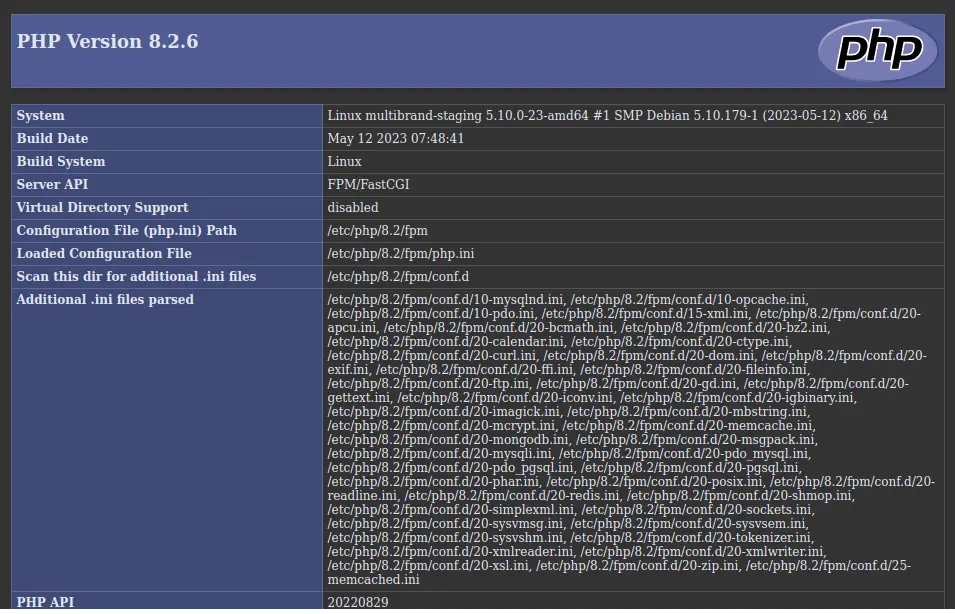
You should see a page displaying detailed information about your PHP installation.
Conclusion
Congratulations! You’ve successfully installed PHP 8.2 on your Ubuntu Server 22.04 environment. By following this step-by-step guide, you’ve gained access to the latest features and performance enhancements that PHP 8.2 offers. Remember that PHP configuration and web server setup might vary based on your specific project requirements, so always tailor the settings accordingly. With PHP 8.2 up and running, you’re well-equipped to tackle your web development projects with cutting-edge tools at your disposal.
Also Read Our Other Guides :
- How To Install PHP8.2 on Rocky Linux 9
- How To Install PHP 7.4 on Ubuntu 22.04
- How To Install PHP 7.4 on Debian 11
- How To Install PHP 8.2 on Debian 11
- How To Install PHP 8.2 on CentOS 7 / RHEL 7
Finally, now you have learned how to install PHP 8.2 on Ubuntu 22.04.