Are you looking to upgrade your PHP version to 8.2 on your CentOS 7 or RHEL 7 server? If you’re running CentOS 7 or Red Hat Enterprise Linux 7 (RHEL 7) and also if you want to make the most of the capabilities of PHP 8.2 for your web applications, you’re in the right place.. Because in this comprehensive guide, we’ll take you through the step-by-step process of how to install PHP 8.2 on your CentOS 7 or RHEL 7 server. Don’t worry if you’re not a Linux expert; we’ve broken it down into simple, certainly easy-to-follow instructions.
Table of Contents
Why Upgrade to PHP 8.2?
Before we dive into the installation process, let’s briefly discuss why upgrading to PHP 8.2 is a good idea. Overall PHP 8.2 offers several benefits, including improved performance, enhanced security, and support for the latest features and standards. By keeping your PHP version up-to-date, you ensure that your web applications run smoothly and remain secure.
PHP is a flexible scripting language that drives a multitude of websites and applications. The introduction of PHP 8.2 brings forth a slew of fresh features and performance improvements for developers to explore.
What’s new in PHP 8.2?
When you curious about the PHP 8.2 updates? Well, let’s break it down for you.
- Type System Improvements: PHP 8.2 enhances its type system. It now supports true types and allows null and false types to be used independently. Moreover, it backs DNF types.
- Constants in Traits: PHP 8.2 introduces a nifty feature – you can now declare constants within traits. This adds flexibility to your trait-based code.
- New Random Extension: PHP 8.2 presents a brand-new random extension. This extension offers a fresh Object-Oriented Programming (OOP) API, making it a breeze to generate random numbers while supporting a flexible architecture.
- Sensitive Parameter Value Redaction: PHP 8.2 brings a valuable built-in parameter attribute, #[SensitiveParameter]. This attribute ensures that PHP takes care to obscure sensitive parameter values in stack traces and error messages, bolstering security.
- New Functions and Classes: PHP 8.2 doesn’t stop there. Also It introduces several handy functions and classes to simplify your coding life. Notable additions include:
- ini_parse_quantity function: This function simplifies parsing values like “2M” or “128K” used in PHP configuration settings.
- curl_upkeep function: An efficient tool for managing cURL handles across multiple requests.
- openssl_cipher_key_length: A function to swiftly fetch the key length for OpenSSL ciphers.
- memory_reset_peak_usage: This function allows you to reset peak memory usage tracking, aiding memory management.
- utf8_encode and utf8_decode Functions Deprecated: In PHP 8.2, the decision has been made to mark the utf8_encode and utf8_decode functions as deprecated. This signals a move towards more contemporary encoding and decoding methods.
In summary, PHP 8.2 ushers in a slew of enhancements, spanning the type system, new functions, and improved security. It’s a promising update for PHP developers keen on staying at the forefront of web development.
Installing PHP 8.2 on CentOS 7 / RHEL 7
Here’s a simple guide on how to install and configure PHP 8.2 on CentOS 7 / RHEL 7. By following these steps, you can tap into the advantages it offers:
Step 1: Update Your System
Before installing PHP 8.2, it’s essential to make sure your CentOS 7 or RHEL 7 system is up to date. Open your terminal and run the following commands:
$ sudo yum updateThis command will update all the installed packages on your system to their latest versions. Once the update is complete, you can move on to the next step.
Step 2: Install EPEL and Remi Repository
To install PHP 8.2, we’ll enable EPEL repository on your CentOS 7 / RHEL 7 system, which provides up-to-date PHP packages for CentOS and RHEL, you can do this with the following command:
$ sudo yum -y install https://dl.fedoraproject.org/pub/epel/epel-release-latest-7.noarch.rpmAlso add Remi repository which provides the latest version of PHP for CentOS and RHEL. Run the following commands to enable the Remi repository:
$ sudo yum -y install http://rpms.remirepo.net/enterprise/remi-release-7.rpmThen enabling the Remi repository and update the system, after that you’re ready for the next step.
$ sudo yum-config-manager --enable remi-php82
$ sudo yum update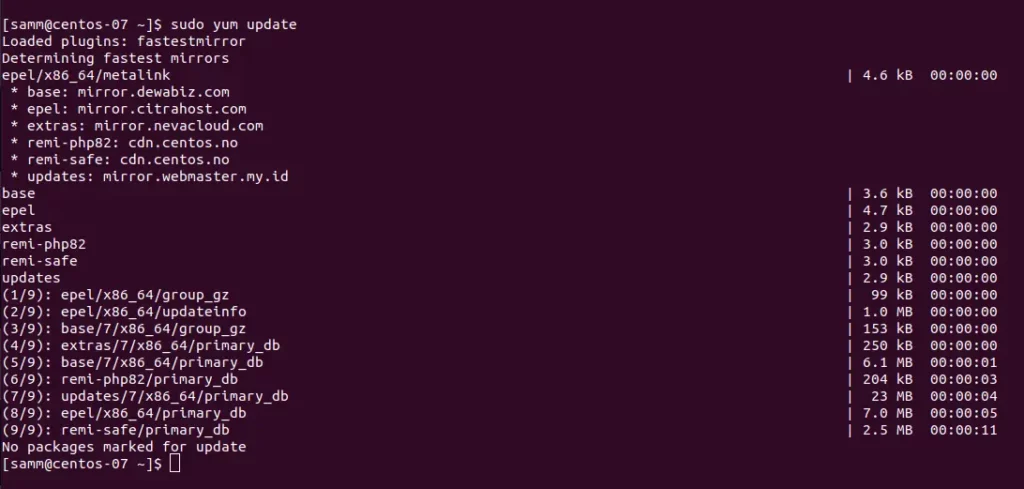
Step 3: Install PHP 8.2 on CentOS 7 / RHEL 7
Now that the Remi repository is enabled, you can install PHP 8.2. Run the following command:
$ sudo yum -y install phpThis command will automatically install PHP 8.2 and its necessary dependencies. After the installation is complete, you can verify PHP 8.2 by checking its version using the following command:
$ php -v
PHP 8.2.11 (cli) (built: Sep 26 2023 11:11:58) (NTS gcc x86_64)
Copyright (c) The PHP Group
Zend Engine v4.2.11, Copyright (c) Zend Technologies
PHP 8.2 comes with a default configuration that should work for most cases. However, you may need to adjust some settings to match your specific requirements. You can edit the PHP configuration file using your preferred text editor. For example:
Step 4: Install PHP 8.2 Extensions
Depending on your specific development needs, you may need to install additional PHP 8.2 extensions on your CentOS 7 / RHEL 7 system. You can install multiple packages PHP 8.2 at the same time, and at the same time, you should think about installing the modules that are commonly needed based on these suggestions, use following command.
$ sudo yum install php-{cli,fpm,mbstring,zip,pgsql,mongodb,redis,memcache,memcached,opcache,gd,mcrypt,apcu,curl,xml,xmlreader,bcmath,json,sockets,imagick,bz2,pdo,dom}After that to proceed with the installation, simply press the ‘Y’ key.
Dependencies Resolved
===========================================================================================================================
 Package                                     Arch          Version                                 Repository         Size
===========================================================================================================================
Installing:
 php-bcmath                                  x86_64        8.2.11-1.el7.remi                       remi-php82         88 k
 php-gd                                      x86_64        8.2.11-1.el7.remi                       remi-php82        101 k
 php-mbstring                                x86_64        8.2.11-1.el7.remi                       remi-php82        578 k
 php-mongodb                                 noarch        1.0.4-1.el7                             epel              109 k
 php-opcache                                 x86_64        8.2.11-1.el7.remi                       remi-php82        642 k
 php-pdo                                     x86_64        8.2.11-1.el7.remi                       remi-php82        156 k
 php-pecl-apcu                               x86_64        5.1.22-1.el7.remi.8.2                   remi-php82         75 k
 php-pecl-imagick-im7                        x86_64        3.7.0-7.el7.remi.8.2                    remi-php82        185 k
 php-pecl-mcrypt                             x86_64        1.0.6-1.el7.remi.8.2                    remi-php82         30 k
 php-pecl-memcache                           x86_64        8.2-1.el7.remi.8.2                      remi-php82         90 k
 php-pecl-memcached                          x86_64        3.2.0-5.el7.remi.8.2                    remi-php82         95 k
 php-pecl-redis6                             x86_64        6.0.1-1.el7.remi.8.2                    remi-php82        312 k
 php-pecl-zip                                x86_64        1.22.2-1.el7.remi.8.2                   remi-php82         71 k
 php-pgsql                                   x86_64        8.2.11-1.el7.remi                       remi-php82        145 k
 php-xml                                     x86_64        8.2.11-1.el7.remi                       remi-php82        248 k
Resolving Dependencies
--> Running transaction check
.....
Transaction Summary
===========================================================================================================================
Install  15 Packages (+105 Dependent packages)

Total download size: 49 M
Installed size: 168 M
Is this ok [y/d/N]:
When you run this command, it will lead to the installation of the following modules:
php8.2-cli– command interpreter, useful for testing PHP scripts from a shell or performing general shell scripting tasksphp8.2-common– documentation, examples, and common modules for PHPphp8.2-mysql– for working with MySQL databasesphp8.2-zip– for working with compressed filesphp8.2-gd– for working with imagesphp8.2-mbstring– used to manage non-ASCII stringsphp8.2-curl– lets you make HTTP requests in PHPphp8.2-xml– for working with XML dataphp8.2-bcmath– used when working with precision floats
Step 5: Configure PHP
Basically PHP 8.2 comes with a default configuration that should work for most cases. However, you may need to adjust some settings to match your specific requirements. The PHP configuration files can be found in the /etc/php-fpm.d/ directory. You can edit the PHP configuration file using your preferred text editor. For example:
$ sudo vi /etc/php-fpm.d/www.confStep 6: Using PHP 8.2 with Nginx/ Apache web server
We’re going to delve into settings for both Nginx and Apache web servers to host your PHP 8.2 application on CentOS 7 / RHEL 7 system. In the upcoming sections, we’ll cover configurations for both options, ensuring you have the flexibility to choose the one that suits your needs.
Using PHP 8.2 with Nginx on CentOS 7 / RHEL 7
Specifically, when dealing with Nginx, PHP code typically gets executed using a separate entity called PHP-FPM (FastCGI Process Manager). It’s important to note that PHP-FPM operates as a daemon, constantly ready to receive incoming PHP requests and handling them in dedicated instances. In this particular arrangement, Nginx takes on the responsibility of directing incoming requests to PHP-FPM, thereby enabling the actual execution of the code.
Before you move forward, make sure that you’ve already installed the Nginx web server. If not, you can refer to this tutorial for step-by-step instructions on how to install Nginx on CentOS 7 / RHEL 7.
- How To Install Nginx on CentOS 7: A Comprehensive Guide
- How To Build NGINX from Source (Compile) on Centos7
To get started, begin by accessing your PHP 8.2 configuration files and implement the following changes.
$ sudo vi /etc/php-fpm.d/www.conf
user = nginx
group = nginx
listen = /var/run/php8.2-fpm.sock
listen.owner = nginx
listen.group = nginx
listen.mode = 0660
After you’ve made changes to the configuration, don’t forget to restart PHP-FPM to apply the updates.
$ sudo systemctl restart php-fpmAfter that open your Nginx server configuration. Once you’re in, navigate to the existing ‘http’ block, and within that block, insert the following code snippet. This configuration will guarantee that PHP requests are routed to PHP-FPM, ensuring seamless execution.
$ $ sudo vi /etc/nginx/conf.d/test-sammlearning.conf
server {
    listen 		80;
    server_name	test.sammlearning.com;
    root		/var/www/sammlearning;
    index		index.php index.html;

    location ~ .php$ {
		try_files 				$uri /index.php =404;
	    fastcgi_split_path_info	^(.+.php)(/.+)$;
		fastcgi_pass            unix:/var/run/php8.2-fpm.sock;
	    fastcgi_index			index.php;
		fastcgi_param			SCRIPT_FILENAME $document_root$fastcgi_script_name;
	    include       			fastcgi_params;
    }
}
Afterwards validate Nginx configuration is ok.
$ sudo nginx -t
nginx: the configuration file /etc/nginx/nginx.conf syntax is ok
nginx: configuration file /etc/nginx/nginx.conf test is successful
Then restart Nginx web server after the configuration.
$ sudo systemctl restart nginx php-fpmAdditionally, you can create a sample php file in the /var/www/html/ folder as shown:
$ sudo vi /var/www/html/info.phpThen add the following PHP code which will populate the version of PHP alongside installed modules.
<?php

phpinfo();

?>
Then, open your web browser and go to the your ip address:
http://server-ip/info.php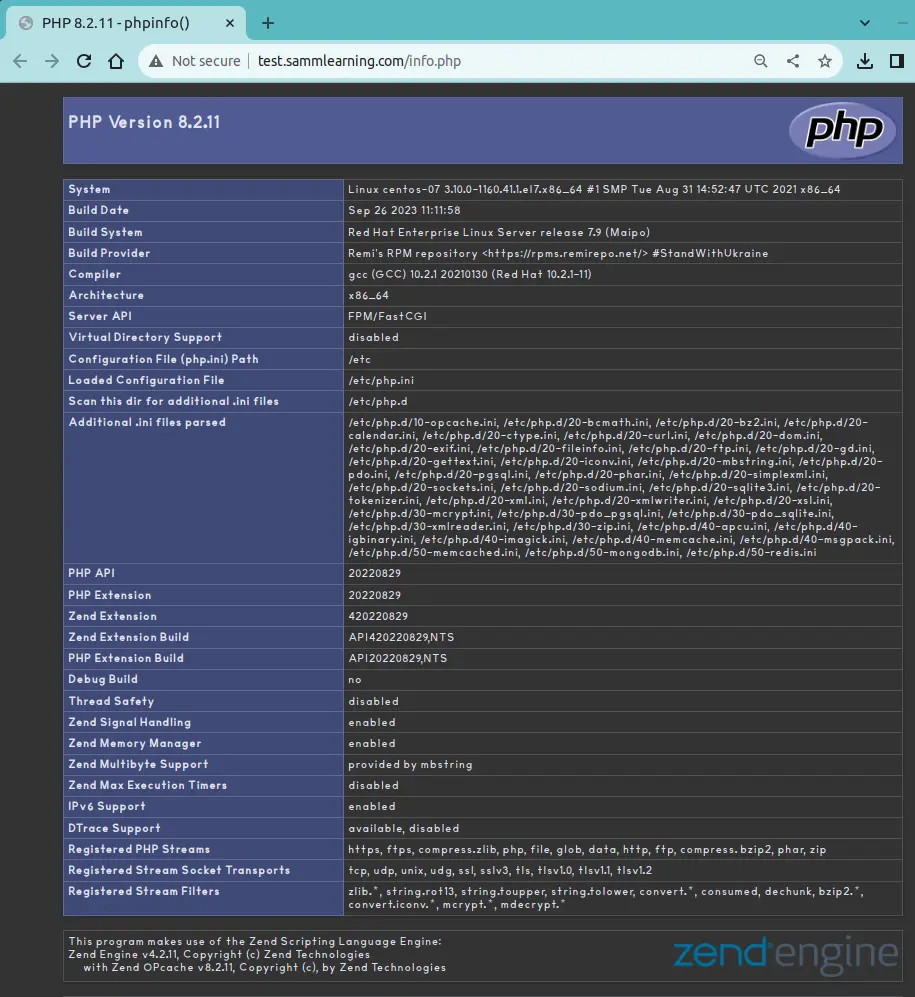
The webpage provides a complete range of information regarding the installed PHP version. This includes details like the build date, build system, architecture, and a lengthy list of PHP extensions.
Using PHP 8.2 with Apache on CentOS 7 / RHEL 7
When working with Apache, we have the option to employ a built-in module known as mod_php, which allows Apache to handle PHP code directly within its own process.
However, before you move forward with this setup, it’s crucial to confirm that you’ve already installed the Apache web server package, as well as PHP and the Apache PHP module. These prerequisites must be in place for a smooth configuration, you can follow to this tutorial for step-by-step instructions on how to install Apache Web Server on CentOS 7 / RHEL 7.
Once you’ve got PHP up and running, the next thing to do is make sure Apache knows how to handle PHP files the right way. To get this done, open up the Apache configuration file using a text editor you like. In our case, we’ll go with the vim text editor with the following command:.
$ sudo vi /etc/httpd/conf.d/sammlearning.confThen inside the file, you can define your virtual host. Here’s a basic example:
<VirtualHost *:80>
    ServerAdmin   [email protected]
    ServerName    www.sammlearning.com
    ServerAlias   sammlearning.com
    DocumentRoot  /var/www/sammlearning
    ErrorLog      /var/log/httpd/sammlearning.com-error.log
    CustomLog     /var/log/httpd/sammlearning.com-access.log combined
</VirtualHost>
Then, save the changes and exit the text editor.
Afterwards you can create a sample index.html file to test the webserver.
$ sudo vi /var/www/sammlearning/index.html<html>
<head>
<title>Welcome to sammlearning.com!</title>
</head>
<body>
<h1>Congratulation! The virtual host for <span style="color:blue; font-size: 24px;">sammlearning.net</span> is now up and running!</h1>
</body>
</html>Then save the file and exit the text editor.
Once you’ve made adjustments to the Apache configuration, be sure to restart the Apache service to ensure the changes take effect:
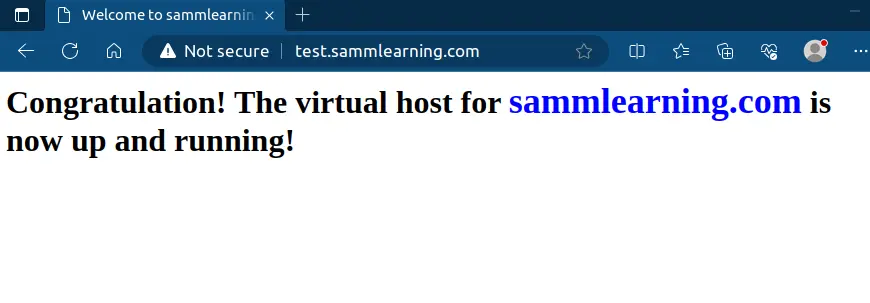
$ sudo systemctl restart httpdThen open a web browser and navigate to http://your_server_ip. You should see a page displaying detailed information about example of your newly configured virtual hosting page.
Troubleshooting PHP 8.2 on CentOS 7
In case you encounter any issues during installation, here are a few common problems and their solutions:
- PHP Version Mismatch: If you still see the old PHP version after installation, make sure you’ve enabled the correct repository (remi-php82).
- Dependency Errors: If you encounter dependency errors, use the
yumcommand with the--enablerepooption to specify the repository you want to install from. - SELinux Issues: CentOS and RHEL systems often have SELinux enabled. If you face permission problems, consider adjusting SELinux policies or temporarily disabling SELinux for testing.
Generally with these troubleshooting tips, you should be able to overcome most installation issues.
Conclusion
Finally you’ve successfully installed PHP 8.2 on your CentOS 7 / RHEL 7 server, configured it to your needs, and verified its functionality. With PHP 8.2, you have access to the latest features and improvements for building powerful web applications. Important to realize upgrading to PHP 8.2 on CentOS 7 or RHEL 7 is a significant step in improving the performance and security of your web applications.
This guide has provided you with a clear, step-by-step approach to get PHP 8.2 up and running on CentOS 7 / RHEL 7. Whether you’re working on a small project or managing a complex web application, having the latest PHP version ensures you’re equipped with the best tools for the job. Moreover, we’ve showcased the process of configuring PHP to seamlessly interact with both Apache and Nginx web servers.
Also Read Our Other Guides :
- How To Install PHP 7.4 on Ubuntu Server 22.04
- How To Install PHP 8.2 on Debian 11
- How To Install PHP 8.2 on Ubuntu Server 22.04
- How To Install Apache Web Server on CentOS 7
- How To Install PHP 8.2 on Rocky Linux 9
Lastly, now you have learned how to install PHP 8.2 on CentOS 7 / RHEL 7.