PHP (Hypertext Preprocessor) is a popular scripting language used for web development. It’s the backbone of many web applications and content management systems, such as WordPress and Joomla. In this tutorial, we will guide you through the process of how to install PHP 7.4 on Debian 11 system.
Table of Contents
- Why PHP 7.4?
- Key Features PHP 7.4
- Prerequisites
- Install PHP 7.4 on Debian 11
- Conclusion
Why PHP 7.4?
Basically PHP 7.4 is one of the most stable and widely used versions of PHP. It offers numerous improvements in performance, security, and language features. By installing PHP 7.4, you can ensure that your web applications run efficiently and securely.
Key Features PHP 7.4
PHP 7.4 is one of the intermediate versions in the PHP 7 series, which was a major milestone for the language. It introduced significant performance enhancements compared to PHP 5.x, along with a number of new features and improvements. Some of the key features and improvements introduced in PHP 7.4 include:
- Typed Properties: PHP 7.4 introduced the ability to declare type hints for class properties. This improves code clarity and helps catch type-related errors during development.
- Arrow Functions: Arrow functions provide a shorter syntax for defining anonymous functions, making code more concise and readable.
- Covariant Returns and Contravariant Parameters: PHP 7.4 introduced better support for covariance and contravariance in method signatures, which helps with improving type flexibility and safety.
- Preloading: This feature allows certain files to be preloaded into memory, resulting in improved performance by reducing the need to load and parse files on each request.
- Shorter Syntax for Exceptions: PHP 7.4 introduced a shorter syntax for throwing exceptions, making error handling more streamlined.
- Improved Error Messages: Error messages and warnings in PHP 7.4 are more descriptive and helpful, aiding developers in identifying and resolving issues more effectively.
- Numeric Literal Separator: Developers can now use underscores to separate groups of digits in numeric literals, enhancing code readability for large numbers.
- Weak References: PHP 7.4 introduced support for weak references, which allows developers to maintain references to objects without preventing them from being garbage-collected when they’re no longer needed.
To begin with, these are just a few highlights of the improvements and features introduced in PHP 7.4.Furthermore, as with any programming language, using the latest version ensures that you have access to the most up-to-date tools, performance enhancements, and security improvements. In addition, it grants you access to a larger ecosystem of packages and libraries developed by the community.
Prerequisites
Before we get started to install PHP 7.4 on Debian 11, make sure you have the following:
- Debian 11 : Make sure you have a clean installation of Debian 11. To set this up, follow our guide Initial Setup Debian 11 Server: Secure and Efficient. You can deploy this on a physical machine or a virtual environment like VMware or VirtualBox.
- A terminal window or SSH client for remote access.
Install PHP 7.4 on Debian 11
Here’s a simple guide on how to install and configure PHP 7.4 on your latest Debian 11 Servers. By following these steps, you can tap into the advantages it offers:
Step 1: Update Your System
Before install PHP 7.4 on Debian 11, it’s essential to update your system’s package list and upgrade installed packages to their latest versions. Open a terminal and run the following commands:
$ sudo apt update
$ sudo apt upgrade
Additionally, this ensures that your system is up to date with the latest security patches and package information.
Step 2: Add PHP 7.4 PPA Repository
We will use the Ondrej PPA for installing PHP on Debian 11 system, but first download GPG key. Enter the following command:
$ sudo apt -y install lsb-release apt-transport-https ca-certificates
$ sudo wget -O /etc/apt/trusted.gpg.d/php.gpg https://packages.sury.org/php/apt.gpg
Then add Sury PHP PPA repository, use the following command to add this PPA.
$ echo "deb https://packages.sury.org/php/ $(lsb_release -sc) main" | sudo tee /etc/apt/sources.list.d/php.listOnce the installation has been completed, an additional repository update is necessitated to ensure the implementation of the changes.
$ sudo apt-get update -y && sudo apt-get upgrade -yStep 3: Install PHP 7.4
Afterwards you should be ready to proceed with the installation of PHP 7.4 on your Debian 11 Linux machine. Run the following command to install PHP 7.4 :
$ sudo apt install php7.4When prompted, select “yes” to finalize the installation of PHP 7.4 on your Debian 11 Linux system.
Reading package lists... Done
Building dependency tree... Done
Reading state information... Done
The following additional packages will be installed:
  apache2 apache2-bin apache2-data apache2-utils libapache2-mod-php7.4 libapr1 libaprutil1 libaprutil1-dbd-sqlite3 libaprutil1-ldap liblua5.3-0 libsodium23 php-common php7.4-cli php7.4-common php7.4-json
  php7.4-opcache php7.4-readline ssl-cert
Suggested packages:
  apache2-doc apache2-suexec-pristine | apache2-suexec-custom www-browser php-pear
The following NEW packages will be installed:
  apache2 apache2-bin apache2-data apache2-utils libapache2-mod-php7.4 libapr1 libaprutil1 libaprutil1-dbd-sqlite3 libaprutil1-ldap liblua5.3-0 libsodium23 php-common php7.4 php7.4-cli php7.4-common
  php7.4-json php7.4-opcache php7.4-readline ssl-cert
0 upgraded, 19 newly installed, 0 to remove and 2 not upgraded.
Need to get 6,429 kB of archives.
After this operation, 26.6 MB of additional disk space will be used.
Do you want to continue? [Y/n]
Once the setup is finished, you’ll have PHP 7.4 all set up and running on your server. You can achieve this by simply running the following command:
$ php -v
PHP 7.4.33 (cli) (built: Sep  4 2023 08:11:54) ( NTS )
Copyright (c) The PHP Group
Zend Engine v3.4.0, Copyright (c) Zend Technologies
    with Zend OPcache v7.4.33, Copyright (c), by Zend Technologies
This command will display the PHP version and relevant information. Consequently, if you see PHP 7.4 listed, congratulations – you have successfully installed PHP 7.4 on your Debian 11!
Step 4: Add Extensions for PHP 7.4
Besides PHP itself, you might want to add some extra PHP features. To do that, you can use this command, but make sure to replace [module-name] with the package you want to add.
sudo apt-get install php7.4-<module-name>You can also install multiple packages at the same time. You might want to consider installing the commonly needed modules based on these suggestions.
$ sudo apt install php7.4-{cli,fpm,common,zip,gd,mcrypt,mbstring,curl,xml,bcmath,json,ldap,fileinfo,tokenizer,opcache,apcu,pdo,mysql,mysqlnd,mysqli,pgsql,mongodb,redis,memcache,memcached,sockets,imagick,iconv,exif,simplexml,dom}Here’s a brief explanation of some package:
php7.4: The core PHP package.php7.4-cli: The PHP command-line interpreter.php7.4-fpm: PHP FastCGI Process Manager.php7.4-json: JSON support for PHP.php7.4-common: Common files for PHP.php7.4-mysql: MySQL database support for PHP.php7.4-zip: ZIP archive support for PHP.php7.4-gd: GD graphics library support for PHP.php7.4-mbstring: Multibyte string support for PHP.php7.4-curl: cURL support for PHP.php7.4-xml: XML support for PHP.php7.4-bcmath: BCMath arbitrary precision mathematics support for PHP.
You can customize the extensions based on your project requirements.
You can see a complete list of active PHP modules by using this command:
$ php -mStep 5: Configure PHP 7.4 Settings (Optional)
Now that PHP is installed, you may need to adjust some settings to fit your project needs. The PHP configuration files can be found in the /etc/php/7.4/ directory. You can modify the php.ini file using your favorite text editor. For example:
$ /etc/php/7.4/cli/php.iniFeel free to personalize settings, such as memory limits, error reporting levels, and other parameters, in order to better align them with your application’s needs.
Step 6: Using PHP 7.4 with Apache and Nginx
We will explore configurations for both Apache and Nginx web servers to host your PHP application.
Configure PHP 7.4 Application with Apache
In Apache, we can use a built-in module called mod_php to handle PHP code directly within the Apache process.
But before you go any further, make sure you’ve installed the Apache web server package along with PHP and the Apache PHP module.
$ sudo apt install apache2 libapache2-mod-php7.4Enable mod_php module:
$ sudo a2enmod php7.4Then restart Apache web server after the configuration.
$ sudo systemctl restart apache2Configure PHP 7.4 Application with Nginx
When using Nginx, PHP code is typically handled by a separate process called PHP-FPM (FastCGI Process Manager). PHP-FPM runs as a background process, ready to handle incoming PHP requests and process them in separate instances. In this configuration, Nginx’s job is to pass incoming requests to PHP-FPM, enabling the execution of PHP code.
Before you continue, make sure you’ve stop/ disable Apache service installed the Nginx web server.
$ sudo systemctl stop apache2
$ sudo systemctl disable --now apache2
After that, install the FPM extension and the Nginx packages.
$ sudo apt install nginx php7.4-fpmAccess your Nginx server configuration and add the following code inside the existing http block. By including this configuration, PHP requests will be efficiently directed to PHP-FPM for smooth execution:
$ sudo vi /etc/nginx/nginx.confAdd the following lines to the file:
server {
    listen 80;
    server_name example.com;
    root /var/www/myweb;
    index index.php index.html;

    location ~ .php$ {
        include snippets/fastcgi-php.conf;
        fastcgi_pass unix:/var/run/php/php7.4-fpm.sock;
    }
}
After that validate Nginx configuration is ok.
$ sudo nginx -t
nginx: the configuration file /etc/nginx/nginx.conf syntax is ok
nginx: configuration file /etc/nginx/nginx.conf test is successful
Then restart Nginx web server after the configuration.
$ sudo systemctl restart nginxStep 7: Test PHP 7.4 with a Web Server
When you’ve installed your chosen web server, go ahead and make a test PHP file in the main directory where your web server serves its files. For instance:
$ echo "<?php phpinfo(); ?>" | sudo tee /var/www/html/phpinfo.phpThen open this file using your web browser by going to http://your_server_ip/phpinfo.php. If the page shows PHP details, it means PHP 7.4 is functioning correctly with your selected web server.
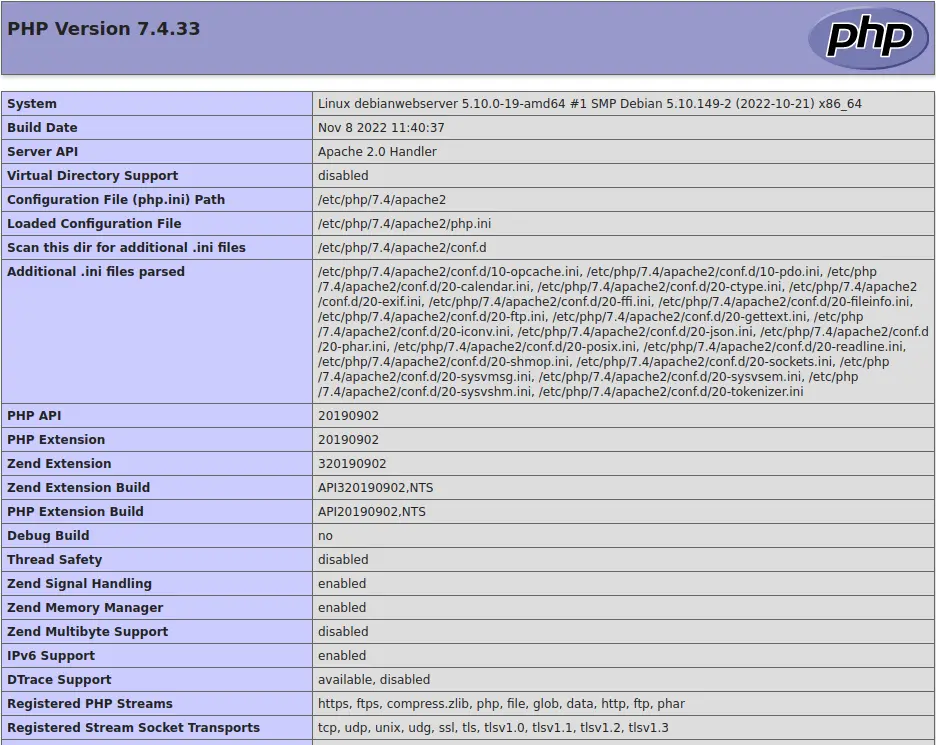
Finally you should see a page displaying detailed information about your PHP installation.
Step 8: Secure Your PHP 7.4 Installation
At this point for security reasons. It’s a good practice to remove the info.php file or restrict its access once you’ve confirmed that PHP is working correctly. Leaving it accessible can expose sensitive information about your server’s PHP configuration.
Conclusion
Finally Congratulations! You’ve successfully install PHP 7.4 on Debian 11 server. PHP is now ready to power your web applications, websites, and more. Remember to keep your server and PHP installation up to date with the latest security patches for optimal performance and security.
Additionally, if you encounter any issues or have specific PHP-related tasks, refer to the PHP documentation and Debian documentation for more information and guidance. Happy coding!
Also Read Our Other Guides :
- How To Install PHP 8.2 on Debian 11
- How To Install PHP 7.4 on Ubuntu Server 22.04
- How To Install PHP8.2 on Rocky Linux 9
- How To Install MariaDB 10.6 on Debian 11 Server
- How To Install MariaDB 10.9 on Debian 11 Server
As I have shown, now you have learned how to install PHP 7.4 on Debian 11.