
Introduction
The evolution of live streaming has revolutionized how we consume and share content. Behind the scenes of seamless live streaming lies the RTMP (Real-Time Messaging Protocol) server, a key component that enables real-time transmission of audio and video data over the internet. In this comprehensive guide, we will walk you through the step-by-step process of Install RTMP with Nginx on CentOS 7. By the end of this tutorial, you’ll have a powerful tool to facilitate high-quality live streaming on your CentOS 7 server.
Table of Contents
Understanding RTMP and Nginx
RTMP is a protocol developed by Adobe that enables real-time communication for audio and video streaming. Nginx, a popular web server, also offers the capability to function as an RTMP server. By harnessing the power of Nginx, you can set up an RTMP server to broadcast live video and audio content to viewers around the world.
Nginx RTMP module has a lot of features some of them are listed below :
- H264/AAC support
- Online transcoding with FFmpeg
- Running external programs on certain events (exec)
- HTTP control module for recording audio/video and dropping clients
- Advanced buffering techniques to keep memory allocations at a minimum level for faster streaming
- Stream relay support for distributed streaming: push & pull models
Prerequisites
- You must have instance least 2GB RAM and 2 Core processor.
- Operating System : CentOS Linux release 7.9.2009 (Core) | IP Private 172.32.1.230 with root or sudo access, to set this up, follow our guide Initial Setup CentOS 7 Server: Secure and Efficient You can deploy this on a physical machine or a virtual environment like VMware or VirtualBox.
- A domain name
Step 1: Update and Upgrade
It is recommended that you should install any new packages on a freshly updated server.
First of all, upgrade all the available packages and update the system using the following command.
[samm@server-rtmp ~]$ sudo yum -y update
Step 2: Install Dependencies
We will install Nginx with RTMP module, but before that, you will need to install other dependencies required such as development tools, EPEL repository, and other packages.
Execute the following command to install development tools.
[samm@server-rtmp ~]$ sudo yum -y groupinstall 'Development Tools'
[samm@server-rtmp ~]$ sudo yum -y install epel-release
[samm@server-rtmp ~]$ sudo yum install -y wget git unzip perl perl-devel perl-ExtUtils-Embed libxslt libxslt-devel libxml2 libxml2-devel gd gd-devel pcre-devel GeoIP GeoIP-devel
Step 3: Install OpenSSL version 1.1.1h
Make a working directory and switch to it.
[samm@server-rtmp ~]$ cd /opt
[samm@server-rtmp opt]$ sudo mkdir source
[samm@server-rtmp opt]$ cd source/

sudo wget https://www.openssl.org/source/openssl-1.1.1h.tar.gz && sudo tar xzvf openssl-1.1.1h.tar.gz

[samm@server-rtmp source]$ sudo yum install perl-core zlib-devel -y

[samm@server-rtmp source]$ cd openssl-1.1.1h/

[samm@server-rtmp openssl-1.1.1h]$ sudo ./config --prefix=/usr/local/ssl --openssldir=/usr/local/ssl shared zlib

Operating system: x86_64-whatever-linux2
Configuring OpenSSL version 1.1.1h (0x1010108fL) for linux-x86_64
Using os-specific seed configuration
Creating configdata.pm
Creating Makefile

**********************************************************************
***
*** OpenSSL has been successfully configured
***
*** If you encounter a problem while building, please open an
*** issue on GitHub <https://github.com/openssl/openssl/issues>
*** and include the output from the following command:
***
*** perl configdata.pm --dump
***
*** (If you are new to OpenSSL, you might want to consult the
*** 'Troubleshooting' section in the INSTALL file first)
***
**********************************************************************
[samm@server-rtmp openssl-1.1.1h]$ sudo make
[samm@server-rtmp openssl-1.1.1h]$ sudo make test
[samm@server-rtmp openssl-1.1.1h]$ sudo make install
[samm@server-rtmp openssl-1.1.1h]$ cd /etc/ld.so.conf.d/
[samm@server-rtmp ld.so.conf.d]$ sudo vi openssl-1.1.1h.conf
#add this line
/usr/local/ssl/lib
[samm@server-rtmp ld.so.conf.d]$ sudo ldconfig -v

[samm@server-rtmp ld.so.conf.d]$ sudo mv /bin/openssl /bin/openssl.backup
[samm@server-rtmp ld.so.conf.d]$ sudo vi /etc/profile.d/openssl.sh
#add this line (Set OPENSSL_PATH)
OPENSSL_PATH="/usr/local/ssl/bin"
export OPENSSL_PATH
PATH=$PATH:$OPENSSL_PATH
export PATH

[samm@server-rtmp ld.so.conf.d]$ sudo chmod +x /etc/profile.d/openssl.sh
[samm@server-rtmp ld.so.conf.d]$ source /etc/profile.d/openssl.sh
[samm@server-rtmp ld.so.conf.d]$ echo $PATH
/usr/local/bin:/usr/bin:/usr/local/sbin:/usr/sbin:/home/samm/.local/bin:/home/samm/bin:/usr/local/ssl/bin

[samm@server-rtmp ld.so.conf.d]$ which openssl
/usr/local/ssl/bin/openssl
[samm@server-rtmp ~]$ openssl version -a
OpenSSL 1.1.1h 22 Sep 2020
built on: Wed Sep 8 11:04:01 2021 UTC
platform: linux-x86_64
options: bn(64,64) rc4(8x,char) des(int) idea(int) blowfish(ptr)
compiler: gcc -fPIC -pthread -m64 -Wa,--noexecstack -Wall -O3 -DOPENSSL_USE_NODELETE -DL_ENDIAN -DOPENSSL_PIC -DOPENSSL_CPUID_OBJ -DOPENSSL_IA32_SSE2 -DOPENSSL_BN_ASM_MONT -DOPENSSL_BN_ASM_MONT5 -DOPENSSL_BN_ASM_GF2m -DSHA1_ASM -DSHA256_ASM -DSHA512_ASM -DKECCAK1600_ASM -DRC4_ASM -DMD5_ASM -DAESNI_ASM -DVPAES_ASM -DGHASH_ASM -DECP_NISTZ256_ASM -DX25519_ASM -DPOLY1305_ASM -DZLIB -DNDEBUG
OPENSSLDIR: "/usr/local/ssl"
ENGINESDIR: "/usr/local/ssl/lib/engines-1.1"
Seeding source: os-specific
Step 4: Download the Nginx and Nginx-RTMP sources
In this step, we will download nginx source code with the additional dependencies including pcre, zlib, and the Nginx RTMP Module source code.
[samm@server-rtmp source]$ sudo wget http://nginx.org/download/nginx-1.18.0.tar.gz && sudo tar zxvf nginx-1.18.0.tar.gz
[samm@server-rtmp source]$ sudo wget https://ftp.pcre.org/pub/pcre/pcre-8.44.tar.gz && sudo tar xzvf pcre-8.44.tar.gz
[samm@server-rtmp source]$ sudo wget https://www.zlib.net/zlib-1.2.11.tar.gz && sudo tar xzvf zlib-1.2.11.tar.gz
[samm@server-rtmp source]$ sudo git clone https://github.com/sergey-dryabzhinsky/nginx-rtmp-module.git
[samm@server-rtmp source]$ cd nginx-1.18.0

[samm@server-rtmp nginx-1.18.0]$ sudo ./configure --prefix=/etc/nginx
--sbin-path=/usr/sbin/nginx
--modules-path=/usr/lib64/nginx/modules
--conf-path=/etc/nginx/nginx.conf
--error-log-path=/var/log/nginx/error.log
--pid-path=/var/run/nginx.pid
--lock-path=/var/run/nginx.lock
--user=nginx
--group=nginx
--build=CentOS
--builddir=nginx-1.18.0
--with-select_module
--with-poll_module
--with-threads
--with-file-aio
--with-http_ssl_module
--with-http_v2_module
--with-http_realip_module
--with-http_addition_module
--with-http_xslt_module=dynamic
--with-http_image_filter_module=dynamic
--with-http_geoip_module=dynamic
--with-http_sub_module
--with-http_dav_module
--with-http_flv_module
--with-http_mp4_module
--with-http_gunzip_module
--with-http_gzip_static_module
--with-http_auth_request_module
--with-http_random_index_module
--with-http_secure_link_module
--with-http_degradation_module
--with-http_slice_module
--with-http_stub_status_module
--with-http_perl_module=dynamic
--with-perl_modules_path=/usr/share/perl/5.26.1
--with-perl=/usr/bin/perl
--http-log-path=/var/log/nginx/access.log
--http-client-body-temp-path=/var/cache/nginx/client_temp
--http-proxy-temp-path=/var/cache/nginx/proxy_temp
--http-fastcgi-temp-path=/var/cache/nginx/fastcgi_temp
--http-uwsgi-temp-path=/var/cache/nginx/uwsgi_temp
--http-scgi-temp-path=/var/cache/nginx/scgi_temp
--with-mail=dynamic
--with-mail_ssl_module
--with-stream=dynamic
--with-stream_ssl_module
--with-stream_realip_module
--with-stream_geoip_module=dynamic
--with-stream_ssl_preread_module
--with-compat
--with-pcre=../pcre-8.44
--with-pcre-jit
--with-zlib=../zlib-1.2.11
--with-openssl=../openssl-1.1.1h
--with-openssl-opt=no-nextprotoneg
--add-module=../nginx-rtmp-module
--with-debug
[samm@server-rtmp nginx-1.18.0]$ sudo make
[samm@server-rtmp nginx-1.18.0]$ sudo make install
Once, the installation is complete create nginx symlink module to the ‘/etc/nginx’ configuration directory.
[samm@server-rtmp ~]$ sudo ln -s /usr/lib64/nginx/modules /etc/nginx/modules
Next, you will need to create a new ‘nginx’ system user and group. Run the following command to do so.
[samm@server-rtmp ~]$ sudo useradd --system --home /var/cache/nginx --shell /sbin/nologin --comment "nginx user" --user-group nginx

[samm@server-rtmp ~]$ sudo tail -n 1 /etc/passwd /etc/group /etc/shadow

==> /etc/passwd <==
nginx:x:998:996:nginx user:/var/cache/nginx:/sbin/nologin

==> /etc/group <==
nginx:x:996:

==> /etc/shadow <==
nginx:!!:18878::::::
[samm@server-rtmp ~]$ sudo mkdir /var/cache/nginx

[samm@server-rtmp ~]$ sudo nginx -t
nginx: the configuration file /etc/nginx/nginx.conf syntax is ok
nginx: configuration file /etc/nginx/nginx.conf test is successful

[samm@server-rtmp ~]$ sudo vi /usr/lib/systemd/system/nginx.service

[Unit]
Description= VIVANetworks >> Nginx RTMP High Performance Webserver
Documentation=https://nginx.org/en/docs/
After=network-online.target remote-fs.target nss-lookup.target
Wants=network-online.target

[Service]
UMask=0002
Type=forking
PIDFile=/var/run/nginx.pid
ExecStartPre=/usr/sbin/nginx -t -c /etc/nginx/nginx.conf
ExecStart=/usr/sbin/nginx -c /etc/nginx/nginx.conf
ExecReload=/bin/kill -s HUP $MAINPID
ExecStop=/bin/kill -s TERM $MAINPID

[Install]
WantedBy=multi-user.target

[samm@server-rtmp ~]$ sudo systemctl start nginx && sudo systemctl enable nginx
Created symlink from /etc/systemd/system/multi-user.target.wants/nginx.service to /usr/lib/systemd/system/nginx.service.


[samm@server-rtmp ~]$ sudo systemctl status nginx.service

● nginx.service - VIVANetworks >> Nginx RTMP High Performance Webserver
Loaded: loaded (/usr/lib/systemd/system/nginx.service; enabled; vendor preset: disabled)
Active: active (running) since Rab 2021-09-08 18:53:31 WIB; 21s ago
Docs: https://nginx.org/en/docs/
Main PID: 24137 (nginx)
CGroup: /system.slice/nginx.service
├─24137 nginx: master process /usr/sbin/nginx -c /etc/nginx/nginx.conf
└─24138 nginx: worker process

Sep 08 18:53:31 server-rtmp systemd[1]: Starting VIVANetworks >> Nginx RTMP High Performance Webserver...
Sep 08 18:53:31 server-rtmp nginx[24133]: nginx: the configuration file /etc/nginx/nginx.conf syntax is ok
Sep 08 18:53:31 server-rtmp nginx[24133]: nginx: configuration file /etc/nginx/nginx.conf test is successful
Sep 08 18:53:31 server-rtmp systemd[1]: Started VIVANetworks >> Nginx RTMP High Performance Webserver.
Step 5: Configure Nginx RTMP Module
Your Nginx server is active and running as a service on your CentOS 7 system. Now, you will have to create a new nginx configuration for RTMP module and to do so, change your current directory to the nginx configuration directory back up the original configuration file. Execute the following commands and they’ll do the job for you.
[samm@server-rtmp ~]$ cd /etc/nginx/
[samm@server-rtmp nginx]$ sudo mv nginx.conf nginx.conf.default
Create a new nginx configuration file using any text editor using the following command.
[samm@server-rtmp nginx]$ sudo vi nginx.conf


user nginx;
worker_processes auto;
events {
		worker_connections 1024;
		}

# RTMP configuration
	rtmp {
		server {
		listen 1935; # Listen on standard RTMP port
		chunk_size 4096;

	# Define the Application
		application show {
		live 			on;
		# Turn on HLS
		hls 			on;
		hls_path 		/mnt/hls/;
		hls_fragment 		3;
		hls_playlist_length 	60;
		# disable consuming the stream from nginx as rtmp
		deny play all;
		}

		}
	}

		http {
		sendfile off;
		tcp_nopush on;
		aio on;
		directio 512;
		default_type application/octet-stream;

		server {
		server_name rtmp.thevivanetworks.com;
		listen 80;

		location / {
		# Disable cache
		add_header 'Cache-Control' 'no-cache';

		# CORS setup
		add_header 'Access-Control-Allow-Origin' '*' always;
		add_header 'Access-Control-Expose-Headers' 'Content-Length';

		# allow CORS preflight requests
		if ($request_method = 'OPTIONS') {
		add_header 'Access-Control-Allow-Origin' '*';
		add_header 'Access-Control-Max-Age' 1728000;
		add_header 'Content-Type' 'text/plain charset=UTF-8';
		add_header 'Content-Length' 0;
		return 204;
		}

		types {
			application/dash+xml mpd;
			application/vnd.apple.mpegurl m3u8;
			video/mp2t ts;
		}

		root /mnt/;
		}
	}
}
[samm@server-rtmp nginx]$ sudo mkdir -p /mnt/hls
[samm@server-rtmp nginx]$ sudo chown -R nginx:nginx /mnt/hls

[samm@server-rtmp nginx]$ sudo systemctl restart nginx
Step 6: Setup First RTMP Live Stream
All the required dependencies are installed and configured correctly now. Now, let’s create new RTMP stream video on demand using the mp4 videos on the server. You will need to edit the nginx configuration file to do so.
[samm@server-rtmp ~]$ sudo vi /etc/nginx/nginx.conf
Add the following content into the ‘rtmp { … }’ bracket in the file.
# RTMP video on demand for mp4 files
application vod {
play /mnt/mp4s;
}

# RTMP stream using OBS
application stream {
live on;
}
[samm@server-rtmp ~]$ sudo mkdir -p /mnt/mp4s
[samm@server-rtmp ~]$ sudo chown -R nginx:nginx /mnt/mp4s

[samm@server-rtmp ~]$ sudo systemctl restart nginx
Allow Port rtmp (1935) in Firewalld
[samm@server-rtmp ~]$ sudo firewall-cmd --zone=public --permanent --add-port=1935/tcp
success

[samm@server-rtmp ~]$ sudo systemctl restart firewalld
Step 7: Testing RTMP Server
You can test this installation and configuration by using RTMP live stream from the VLC media player. But first copy file a sample video (mp4) to /mnt/mp4s (in this tutorial using surrender.mp4)
Video On Demand Stream
- Open the VLC media player app on your computer.
- Click on the ‘File’ menu from the media library and select the Open Network option.
- Now enter the RTMP URL for our vod stream like this:
rtmp://172.32.1.230:1935/vod/surrender.mp4 (Only Local)
Replace YourServerIP with the actual IP address of your server. - Finally, click on the Open button. You will get the Video Stream on your screen.
For public access rtmp you can try this link : rtmp://rtmp.sammlinux.com/vod/surrender.mp4
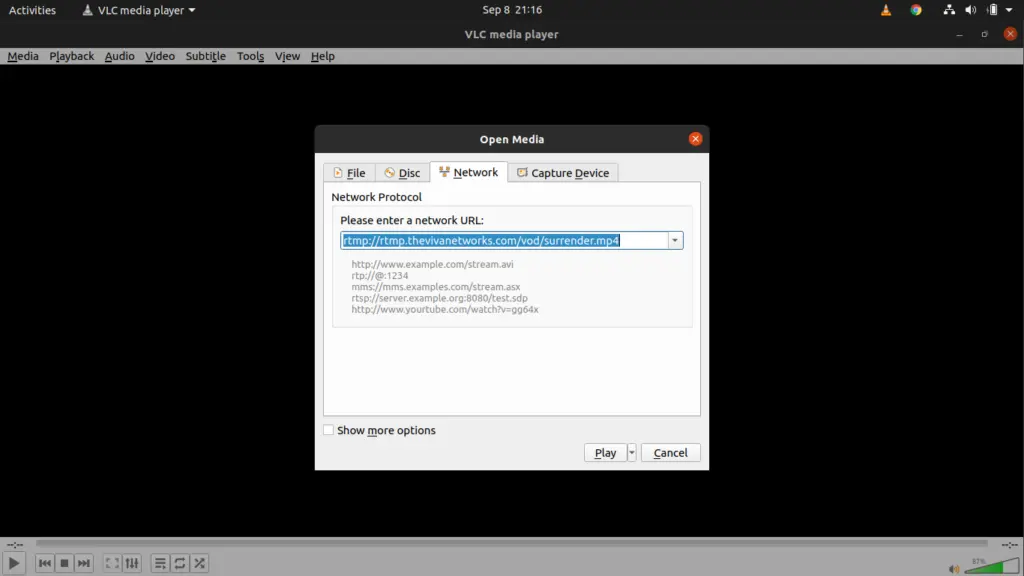
And Play..

Conclusion
Congratulations! You have successfully set up an RTMP server using Nginx on CentOS 7. This powerful configuration allows you to host live streaming events, webinars, and online broadcasts with ease. By combining the capabilities of Nginx and the RTMP protocol, you’ve created a robust platform for real-time audio and video transmission over the internet.
Remember that live streaming demands a stable internet connection and proper configuration to ensure seamless broadcasts. As you continue to explore the world of live streaming, you can further customize your RTMP server to meet specific requirements and integrate it with other services. With your new RTMP server up and running, you’re ready to captivate audiences with captivating live content. Happy streaming!
Also Read Our Other Guides :
- How To Install Apache Solr 9.1 on Debian 11
- How To Install Redis on Debian 11 Server
- How To Install Varnish Cache for Nginx on Rocky Linux 9
- How To Install Docker CE on Centos 7
Finally, now you have learned how to Install RTMP with Nginx on CentOS 7.