If you’re a Linux VPS user, you’re already aware of the power and flexibility it offers. However, data safety is paramount, and regularly backing up your files is a crucial aspect of maintaining your VPS. In this article, we’ll walk you through the process of how to backup files from your remote Linux VPS using the reliable Rsync script.
Table of Contents
- Why Backing Up Your Linux VPS Files is Essential
- Understanding Rsync – Your Data Backup Solution
- Additional Tips for Effective Linux VPS Data Backup:
- Conclusion
Why Backing Up Your Linux VPS Files is Essential
Before diving into the technical details, let’s understand why backing up your Linux VPS files is so essential. Data loss can occur due to various reasons, including hardware failures, accidental deletions, or even security breaches. By having a backup, you can restore your data quickly and ensure business continuity.
Understanding Rsync – Your Data Backup Solution
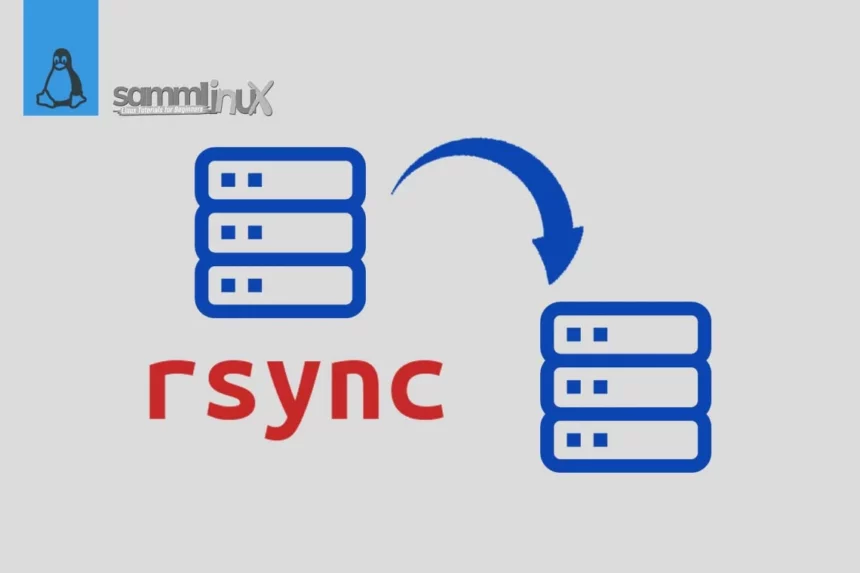
Rsync is a powerful and versatile utility for data synchronization and transfer. It stands for “remote sync” and is widely used to keep files and directories synchronized between systems. The key benefit of Rsync is its efficiency in transferring only the differences between the source and destination, minimizing bandwidth usage and time.
Now, let’s move on to the step-by-step process of backing up your files from your remote Linux VPS using the Rsync script.
Step 1: Establishing the Connection
Firstly, you need to establish a connection to your remote Linux VPS. You can use SSH (Secure Shell) for secure communication between your local machine and the VPS. For set up SSH you see following guide :
Step 2: Installing Rsync (if not already installed)
Rsync is pre-installed on many Linux distributions, but if it’s not on your VPS, you can easily install it using your package manager. For instance.
Debian/ Ubuntu
$ sudo apt-get install rsync
CentOS
$ sudo yum install rsync
Rockylinux
$ sudo dnf install rsync
Step 3: Creating the Backup Script
To create a backup script, you’ll need to open your favorite text editor and create a new file, e.g., backup_script.sh. Here’s a simple example of what your script might look like:
#!/bin/bash

#Source and Destination
source="/path/to/source"
destination="/path/to/destination"

# Loop until rsync completes successfully
while true; do
    # rsync operation with SSH key-based authentication and progress display
    rsync -avz --partial --append --progress -e "ssh -i /path/to/your/private/key
    -o StrictHostKeyChecking=no" username@your_vps_ip:"$source" "$destination"

    # Check the exit status of rsync
    if [ $? -eq 0 ]; then
        echo "rsync completed successfully."
        break  # Exit the loop if rsync is successful
    else
        echo "rsync failed or was interrupted. Retrying in 5 seconds..."
        sleep 5  # Wait for 5 seconds before retrying
    fi
done
Make sure to replace /path/to/source/ with the path to the directory you want to back up and user@your_vps_ip with your VPS login information and IP address. Similarly, replace /path/to/destination/ with the directory on your VPS where you want to store the backup.
Script Explanation
Certainly! Let’s break down the given Bash script step by step:
while true; do: Initiates an infinite loop. The script will keep running until explicitly terminated or until abreakstatement is encountered.rsync -avz --partial --append --progress -e "ssh -i /path/to/your/private/key -o StrictHostKeyChecking=no" username@your_vps_ip:"$source" "$destination": This line performs the rsync operation. Here’s what each part does:
rsync: The command for synchronizing files and directories.-avz --partial --append --progress: Various options for the rsync command:-a: Archive mode, which preserves permissions, ownership, timestamps, etc.-v: Verbose mode, providing detailed output about the synchronization process.-z: Compress file data during the transfer.--partial: Allows rsync to keep partially transferred files if the transfer is interrupted.--append: Resumes partial file transfers, ensuring that partially transferred files are completed.--progress: Displays a progress bar indicating the status of the synchronization.
-e "ssh -i /path/to/your/private/key -o StrictHostKeyChecking=no": Specifies the use of SSH for the transfer and provides the path to the private key for authentication (/path/to/your/private/key). The-o StrictHostKeyChecking=nooption disables strict host key checking, allowing connections to hosts without known host keys.username@your_vps_ip:"$source": Specifies the remote server’s username (username) and its IP address (your_vps_ip). It also specifies the remote source directory or file to be synchronized, denoted by"$source"."$destination": Specifies the local destination directory where the files will be copied.- The script checks the exit status of the rsync command using the
if [ $? -eq 0 ]; thenstatement. If the exit status is 0 (indicating success), it prints “rsync completed successfully.” and exits the loop usingbreak. If the rsync operation fails, it prints “rsync failed or was interrupted. Retrying in 5 seconds…” and waits for 5 seconds before retrying the rsync operation.
This script ensures continuous synchronization between the specified source and destination directories, handling interruptions and failures gracefully by retrying the operation after a short delay.
Step 4: Making the Script Executable
You need to make your script executable by running the following command:
$ chmod +x backup_script.sh
Step 5: Running the Backup
Now, you can execute your script to start the backup process using following command:
$ ./backup_script.sh
Step 6: Verifying the Backup
After the backup is completed, you should verify the copied data to ensure its integrity. You can do this by comparing the original files and the backup.
Step 7: Scheduling Regular Backups
Automating the backup process is a wise choice. You can use tools like Cron to schedule regular backups, ensuring your data is consistently protected.
To automate the execution of your script at specific intervals, you can utilize the cron utility in Linux. This powerful tool allows you to schedule tasks, including running scripts, based on predefined time frames or particular times. Here’s a step-by-step guide on how to schedule your script using cron:
Access Crontab Configuration
Begin by opening your user’s crontab configuration for editing. Execute the following command in your terminal:
$ crontab -e
This command will open the crontab configuration file in your default text editor.
Set Up the Scheduled Task
Inside the crontab file, insert a line to specify when and how frequently you want the script to run. The cron job line follows this format:
* * * * * /path/to/script.sh
Here’s the breakdown of each field:
- The first field (minutes) accepts a number from 0 to 59.
- The second field (hours) accepts a number from 0 to 23.
- The third field (days of the month) accepts a number from 1 to 31.
- The fourth field (months) accepts a number from 1 to 12 or a three-letter abbreviation (e.g., Jan, Feb, etc.).
- The fifth field (days of the week) accepts a number from 0 to 7, where both 0 and 7 denote Sunday, or a three-letter abbreviation (e.g., Sun, Mon, etc.).
For instance, if you wish to execute your script daily at 2:00 AM, add the following line to the crontab file:
0 2 * * * /path/to/your/script.sh
Ensure that you replace /path/to/your/script.sh with the actual path to your script.
By setting up your cron job in this manner, your script will automatically run at the specified time without requiring manual intervention. This seamless automation enhances your workflow and ensures timely execution of essential tasks.
Additional Tips for Effective Linux VPS Data Backup:
- Use SSH Key Authentication: Instead of password-based authentication, use SSH keys for increased security during the connection setup.
- Monitor Your Backups: Regularly check the status of your backups and set up notifications to alert you if any issues arise.
- Offsite Backup: Consider storing backups in a different location or using remote backup services for an extra layer of security.
- Encrypt Your Backups: Protect your data by encrypting your backups to prevent unauthorized access.
- Test Your Restoration Process: Ensure you can restore data from your backups successfully, as having backups alone is not enough.
Conclusion
In the world of remote Linux VPS management, data backup is non-negotiable. By following this guide, you’ve learned how to backup files from your remote Linux VPS using the Rsync script, a reliable and efficient method for ensuring the safety and security of your valuable data. Make data backup a routine, and you’ll be well-prepared to face any unforeseen data loss scenarios.
As we conclude this guide, we emphasize the importance of data protection, as well as the reliability and convenience of using the Rsync script for your Linux VPS. Be sure to implement these best practices to safeguard your VPS data and maintain your peace of mind.
In this journey of data protection, explore related keyphrases like “Remote data protection” and “Secure your Linux VPS files with Rsync,” which will provide additional insights into enhancing your data security strategy. Additionally, synonyms such as “A reliable backup approach for Linux VPS data” and “Preserving data integrity on a remote Linux VPS” can offer fresh perspectives on data safety. Start securing your Linux VPS data today with Rsync and fortify your digital world against potential data loss.
Also Read Our Other Guides :
- How To Use Rsync to Sync Local and Remote Directories in Linux
- How To Get Total Inodes and Increase Disk Inode Number in Linux
- Best Practices Linux Server Security for System Administrator
Finally, now you have learned How To Backup Files From Remote Linux VPS Using Rsync Script